While everyone’s been talking about ChatGPT-5, did you know that OpenAI actually released a free open-source model that can be run locally on your PC? That means no subscription, no API fees, no internet connection - allowing full data privacy. This is especially useful for NZ businesses handling sensitive client data.
The Models
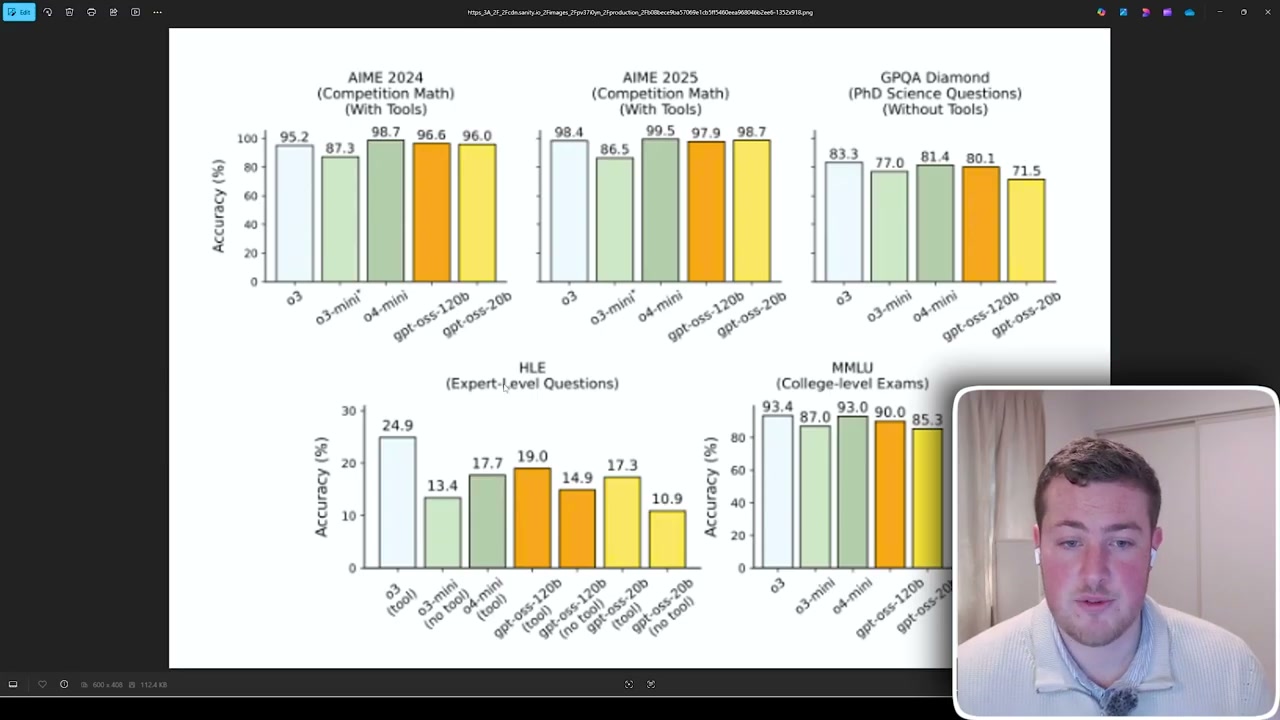
OpenAI released two open-source models: a 120 billion parameter version and a 20 billion parameter version. For being completely free and open source, the benchmarks are impressive. The 120B model actually outperforms O3 (one of their best paid reasoning models) on competition maths, and sits just under O3 for PhD-level science questions.
The 20B model is significantly smaller but still performs well. For college-level exams, the larger model sits just slightly under O3, which is remarkable for a free tool.
Setting Up with Ollama
To run these models, we use a program called Ollama. Head over to ollama.com, hit the download button, and choose Windows, Linux, or macOS depending on your operating system.
Ollama is software that lets you download and run open-source LLMs locally on your machine. Once the installer finishes, you’ll get a prompt window that looks very similar to ChatGPT, Gemini, or Claude - a simple prompt terminal with conversation history on the side.
Selecting a Model
In the dropdown, you can select from a range of open-source models including GPT-OSS, Gemma (Google’s open-source models), and Qwen. I’d recommend trying the 20 billion parameter model first, as the 120B version requires significant hardware.
Testing It Out
Once downloaded, you can run any prompt. For example, the classic “How many Rs are in Strawberry?” test. Because it’s a thinking model, you’ll see it iterate and reason through the problem rather than just outputting an answer immediately.
The speed depends entirely on your computer hardware. With a good GPU and processing system, it runs much faster. In my test, it came back in about 30 seconds with the correct answer: three.
In the settings, you can verify there’s no account connected and it’s not exposed to your local network. You can also adjust context length and enable airplane mode for fully offline use.
Using the Terminal
If you’re more technical, you can also run it through the terminal. Ollama only recently added the UI, so the terminal was the original way to interact with it. The performance is actually really fast for a locally-hosted model.
Automating with Python
To automate workflows using locally-hosted models, you can set up a Python script. Just install the Ollama package with pip, set the model name and prompt, and run it. You can create scripts that process a range of prompts and output results to a CSV or any format you need.
These open-source models give you tremendous freedom for customisation and automation with no subscription cost. The trade-off is that you may need to upgrade your PC to run the larger models at a reasonable speed.