You’ve seen AI agents that browse the web for you, but what if they browsed with you instead? Microsoft’s new Edge Copilot makes that happen. Instead of switching tabs between ChatGPT, Claude, and your different browsers, Edge embeds Copilot right into your sidebar. It reads your page, summarises information, and even chats about what’s on the screen - all without losing context.
It’s perfect for anyone - whether you’re in New Zealand or elsewhere - who just wants to save a little bit of extra time. But the feature that surprised me the most was the interactive voice mode.
The Copilot Interface
The basic interface is a blend between a chatbot and a search engine. There’s a dropdown where you can choose between Smart, Quick Response, Think Deeper, and Study and Learn modes. These will be familiar if you use ChatGPT, since the model behind Copilot is typically GPT-5 or the older GPT-4.
When you type something in, you get two options: “Ask Copilot” and “Search.” This lets you choose whether to default into an AI chatbot conversation or do a traditional web search.
Page Context and Tab Comparison
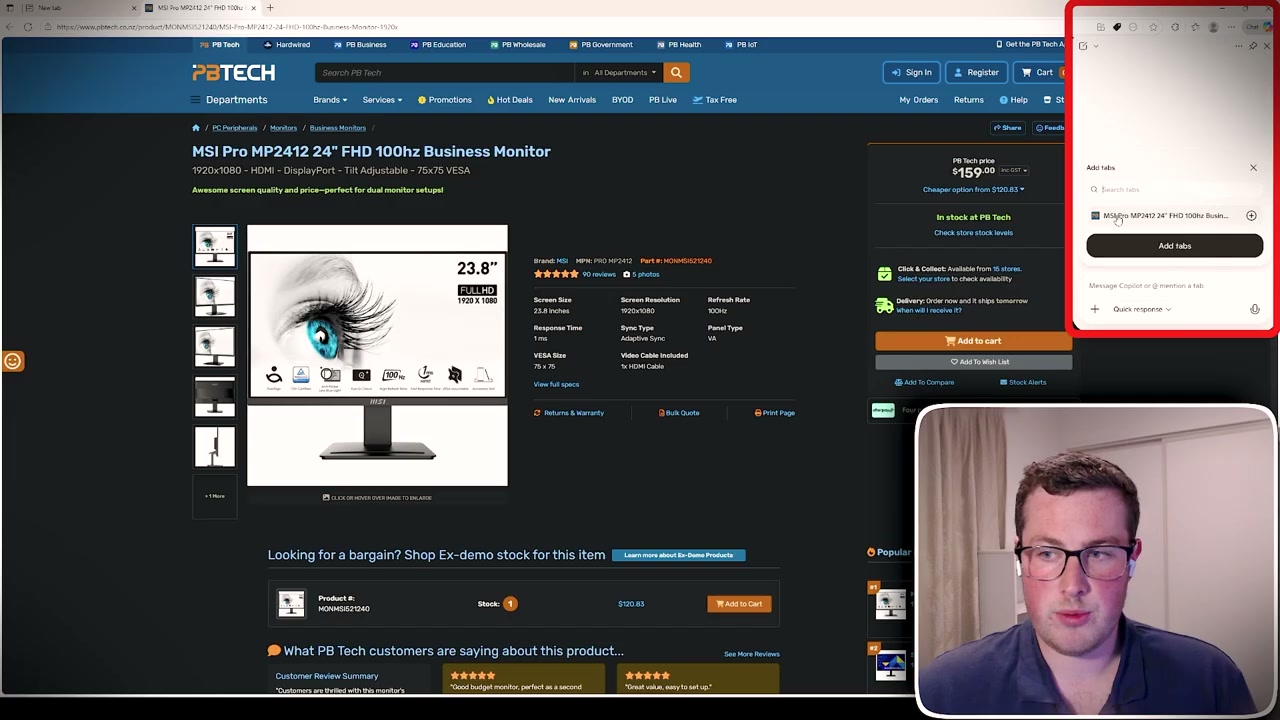
Say you’re looking at buying a monitor on a retail site. Traditionally, you’d copy the product name, open a different tab, paste it into an AI tool, and go from there. With Edge Copilot, you can attach the page context directly from the sidebar.
An important difference is that some AI models reference indexed pages that may not be up to date - the price might have changed, or the item could be out of stock. Copilot works with the actual live information you’re seeing, which provides much more certainty.
You can even add multiple tabs for comparison. If you have two monitors you’re deciding between, add both tabs and ask Copilot to tell you which is the best for the price. It pulls information from both without you having to copy and paste anything.
Screenshot Integration
If you’re on a page and have an image you don’t recognise, instead of feeding the entire page context into the AI, you can take a targeted screenshot and upload it directly into the chat window. This is useful for translation, image identification, or any situation where you want to focus on a specific section of a web page.
Interactive Voice Mode
The interactive voice mode lets you chat with Copilot using your voice while it references the context you’re seeing on screen. Open the chat window and click “Talk to Copilot” in the bottom right.
You can ask it to compare products, explain technical specs, or break down information on any page you’re viewing - all hands-free. For example:
- “Can you tell me the pros and cons of each of these monitors?”
- “What does screen resolution mean? Is a higher number better?”
- “What is refresh rate?”
The Future of Voice-First Browsing
I think voice interaction is going to be a huge part of the progress moving forward. It’s a lot more natural for humans to speak their ideas rather than type them. When we combine agentic AI that can use a computer for you with voice interaction, the amount you can do with just your voice is going to be incredible.
There are plenty of other AI-assisted browsers emerging too, such as Perplexity’s Comet and ChatGPT’s Atlas. Voice is becoming the new interface where people can interact and actually control their tools, and that’s an exciting shift.