We’ve just rolled over to a new financial year here in New Zealand and it’s important to keep your accounting up to date as we move along. The problem is there’s so much tedious, manual, admin-heavy work managing your receipts, your billing, your invoicing. What if AI could actually reduce that workload, so you can focus on real progress inside your business rather than that admin work?
This is something I’ve done in my own business. I hooked Claude up to my Xero account so I can auto-log receipts, manage invoicing and contacts, and flag any errors. Here’s exactly how to get set up and some quick wins so you can start buying back your time.
Does Claude integrate with Xero?
Yes. Claude integrates with Xero through a custom connection you create in the Xero Developer Portal and add to the Claude desktop app as an MCP connector. There is no middleware and no code to write: once the connection is live, Claude can read your invoices, contacts, bank transactions and reports, and create new entries wherever you have granted it the scope. The rest of this guide is the exact setup, followed by the three quick wins I run in my own business.
Update, September 2026: the Xero MCP server and Xero’s Claude connector
Updated 18 September 2026. Since I first published this guide, the options have changed. There are now two official ways to connect Claude to Xero, and which one you want depends on whether Claude only needs to read your books or also needs to write to them. The short version, kept current as both connectors change, sits on the Claude and Xero hub.
Is there an official Xero connector for Claude?
Yes. Since May 2026 Xero has had an official connector in Claude’s connectors directory. You add Xero in Claude, sign in with your normal Xero login and choose the organisation - no developer setup. It is free to add, works on any Claude plan including Free, and is read-only at launch: Claude can answer questions about profit, cash, invoices and customers from live Xero data, but it cannot change anything. Xero says the data is used only for your session and never to train AI models.
What is the Xero MCP server?
The Xero MCP server is Xero’s own open-source MCP server (MIT licence, published by XeroAPI on GitHub, npm package @xeroapi/xero-mcp-server). It runs on your computer alongside Claude Desktop, connects through a Xero custom connection, and gives Claude read and write tools: contacts, invoices, quotes, credit notes, payments, bank transactions, manual journals, reports, and payroll timesheets and leave for NZ and UK organisations. It is the route this guide walks through, because logging receipts and creating entries needs write access.
| Xero connector in Claude | Xero MCP server | |
|---|---|---|
| Read or write | Read-only at launch | Read and write, limited to the scopes you grant |
| What it covers | Profit, cash, invoices and customers, with links back to Xero | Contacts, invoices, quotes, payments, bank transactions, journals, reports and payroll timesheets |
| Setup | Add Xero in Claude and sign in - no developer setup | A Xero custom connection, then a config block in Claude Desktop |
| Cost | Free to add, on any Claude plan | Free software; the custom connection is a paid Xero add-on |
| Best for | Asking questions of your numbers | Logging receipts and other data entry |
Two changes to the steps below since April. First, custom connections created from 29 April 2026 use Xero’s newer granular scopes - for example accounting.invoices, accounting.banktransactions and accounting.reports.profitandloss.read - instead of the older bundled accounting.transactions scopes. The MCP server tries the old set first and falls back to the new one, and you can set your own list with the XERO_SCOPES setting. Second, the server needs Node.js 18 or later on your computer.
What the official server does not do out of the box: each custom connection is tied to one Xero organisation, and it has no tools for reading the files attached to bills and invoices. For client setups I’ve built a read-only Xero connector that works across several Xero organisations in one conversation and can read those attachments - useful for accounting practices and anyone running more than one entity. If you would rather have that set up than build it, that is part of my Claude setup for NZ businesses. There is more on how this fits an accounting practice on the AI for accountants page.
NZ specifics: GST and bank feeds
- Tell Claude your tax rates. Claude reads the GST off each receipt, but it has to code to the tax rates set up in your Xero organisation. Ask it to list your tax rates first (the MCP server has a tool for this) and tell it which to use for local purchases and for overseas subscriptions that didn’t charge GST. Check the treatment with your accountant.
- Let it ask the awkward questions. In my own receipt test, Claude asked whether to split a client dinner 50/50 between Entertainment and Entertainment - Non deductible. That is the kind of NZ-specific question you want it raising before anything is posted, not after.
- Keep your bank feeds doing their job. The main NZ banks, including ANZ, BNZ, Kiwibank and Westpac, have direct bank feeds into Xero. Claude doesn’t replace the feed, and the read-only connector can’t reconcile anything. What works well is using Claude on the other side: log the bills and receipts with the right codes so they are already waiting when the bank line arrives, then reconcile in Xero as normal.
- GST returns stay with you. Neither the connector nor the MCP server files a return. Claude is useful for the checks before you file - spotting transactions on an unusual tax rate or expenses without a receipt - and the return itself goes through Xero or myIR as usual.
Prerequisites

The only things you need for this are:
- A Claude licence - Claude is an AI chatbot made by Anthropic. It’s the most preferred tool for people in the AI space. It allows you to connect to all of your different software, read and write data, and teach it custom skills for exactly what you need it to do.
- Your existing Xero subscription plus a $10/month custom connection add-on to your existing plan.
Step 1: Set Up the Xero Custom Connection
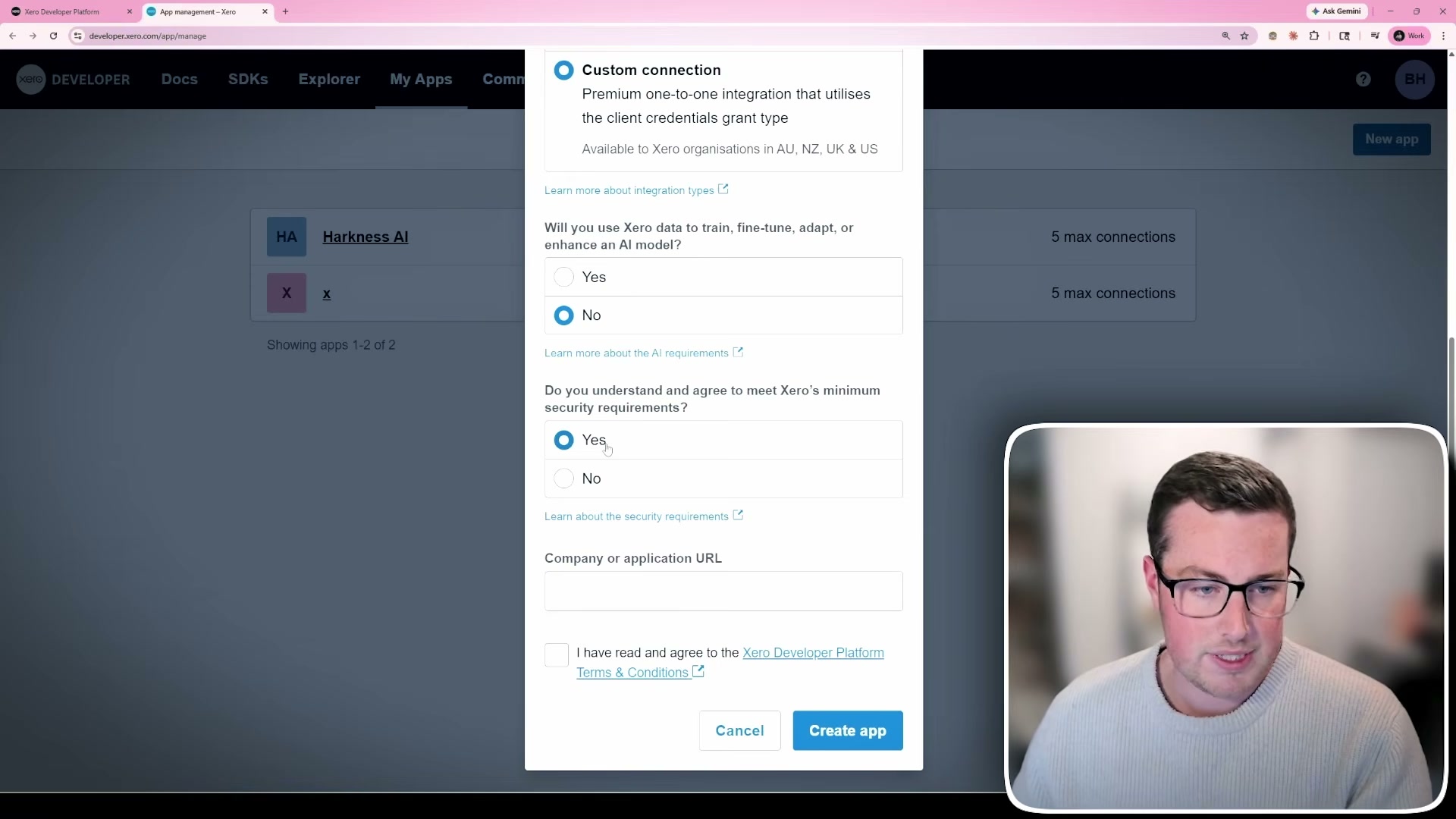
Head to developer.xero.com and log in with the account that has admin permissions to your Xero organisation. You’ll land on the apps page (probably blank if you haven’t done this before). You may need to set up custom connections first if they’re not enabled.
Click New App at the top. Name it something like “Claude MCP”. Select Custom Connection as the type. For “Will you use Xero to train, fine-tune, adapt or enhance the model?” select No. Agree to the security requirements, enter a company URL (Claude works fine), accept the terms, and create the app.
Step 2: Configure the Scopes
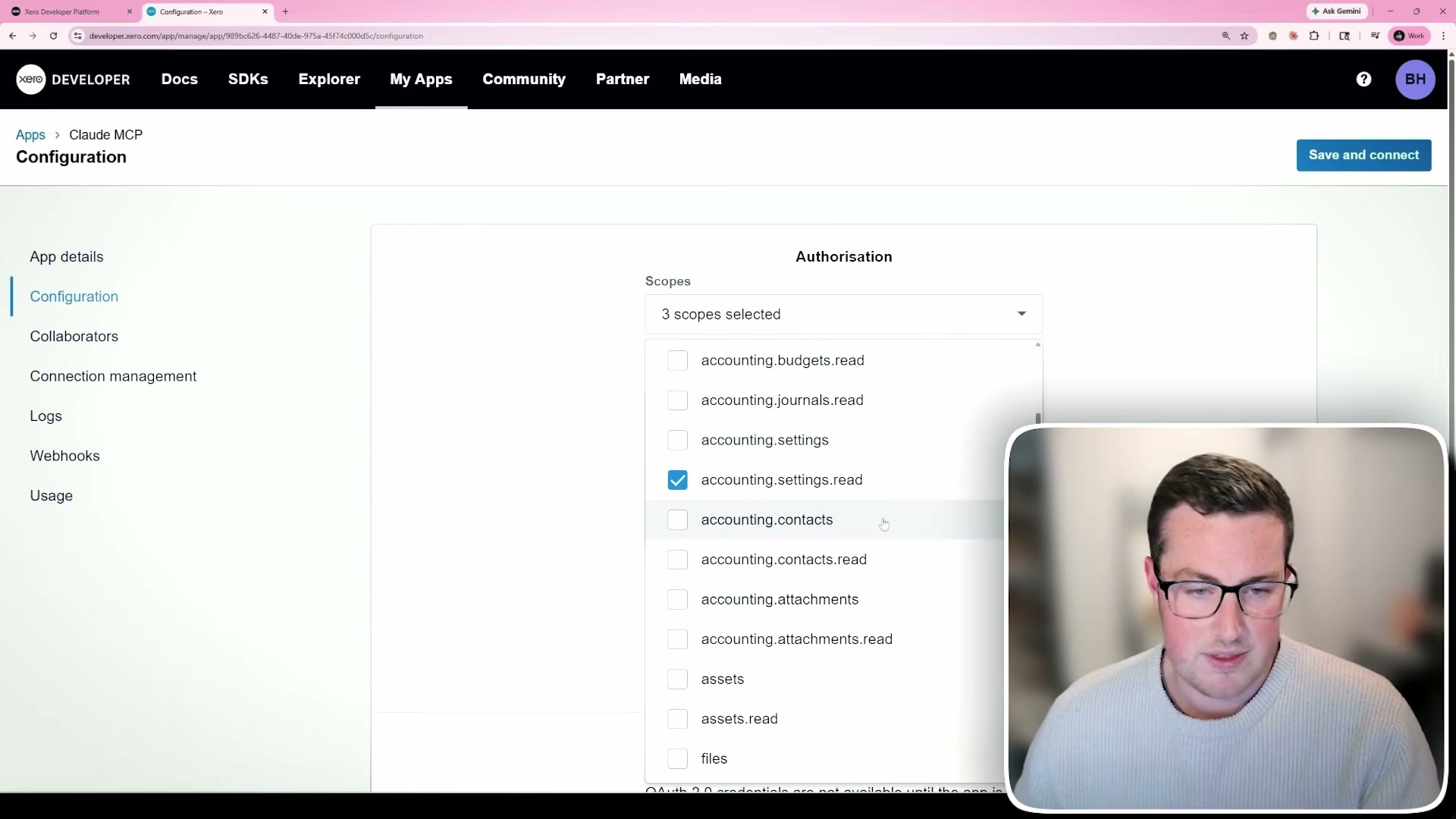
Scopes tell the connection what Claude can actually access inside your Xero account. For every scope you’ll see two versions - for example, accounting.transactions and accounting.transactions.read.
- The .read version only allows Claude to pull information out of Xero.
- The full version allows Claude to both read and write - meaning it can create new entries or edit existing ones.
Tip: Start with read-only permissions until you get a handle on it and understand what it’s doing. You can always expand later.
For my setup, I enabled full access on transactions (so Claude can log receipts), read-only on reports, read on settings, full access on contacts (so it can create new ones), and attachments. Tailor this to however your Xero environment is set up.
Step 3: Connect Claude to Xero
After saving your scopes and confirming the connection via the automated email, you’ll have a Client ID and a Client Secret. Keep the secret completely private - anyone with it has the permissions you’ve configured.
In the Claude desktop app, go to Settings → Developer → Edit Config. Paste in the MCP configuration (available in the video description), replacing the placeholder Client ID and Client Secret with your own values. Save the file and restart Claude.
After restarting, click the Add button, go to Connectors, and you should see Xero turned on. Test it by asking Claude to use Xero - it will confirm the scopes you have access to.
Quick Win 1: Auto-Log Receipts
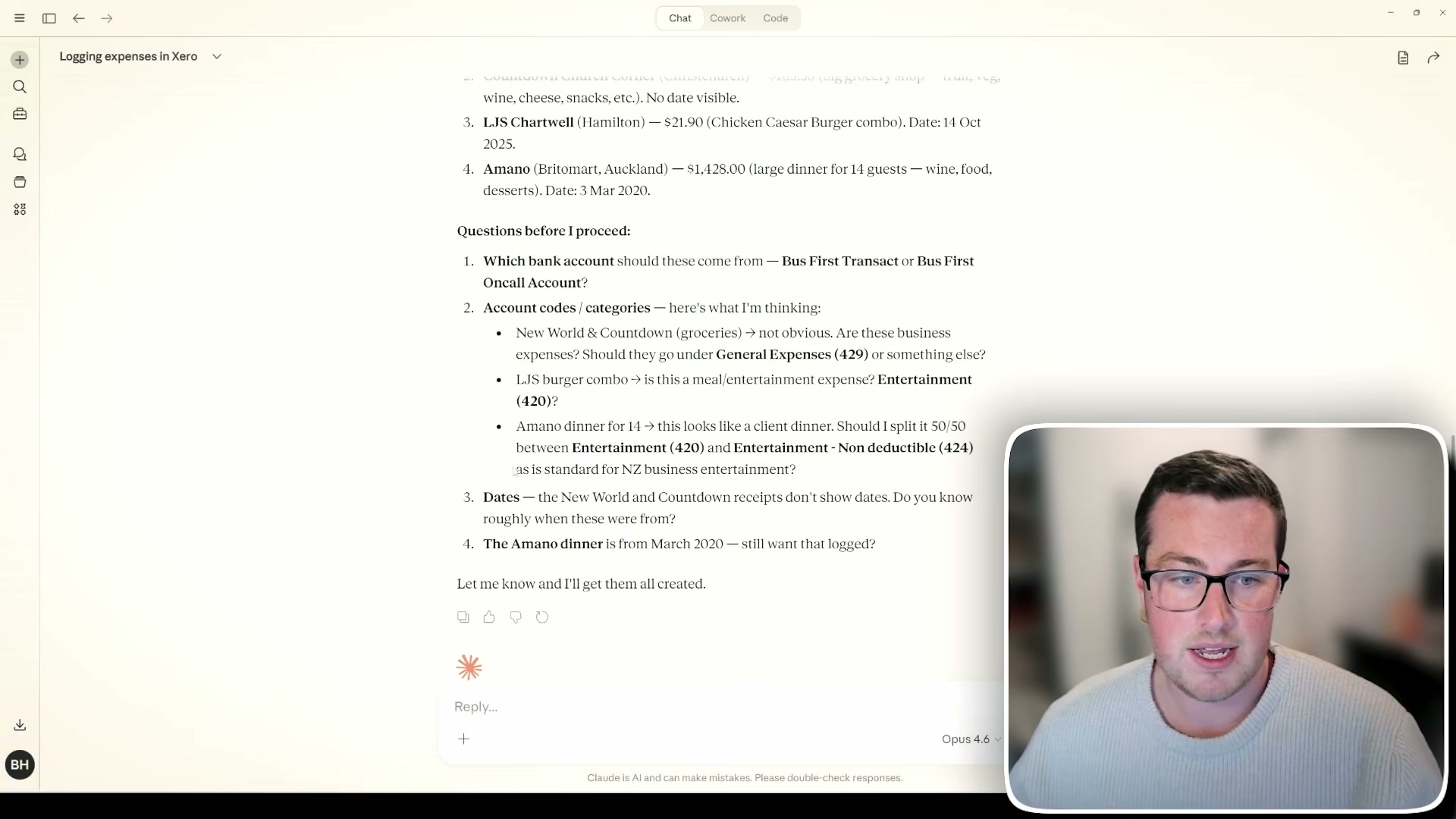
One of the best immediate use cases is compiling receipts and logging them into Xero automatically. Simply drag and drop receipt images into Claude and ask it to log them as expenses.
Claude will read through each receipt, extract the text, figure out the value, GST, taxes, and sort it all out. It’ll even detect duplicates - in my test with six receipt images, it identified that three were duplicates, leaving only four unique receipts.
Before proceeding, Claude asks smart questions: which bank account should they attach to? What account codes or categories? Any missing dates? It then creates the entries. For the first connection, Claude verifies each action with you through a human-in-the-loop confirmation - you can see exactly what it’s about to do and approve or deny it.
After approval, the receipts appear in Xero with contacts created, line items filled in, GST calculated - all done automatically.
Quick Win 2: Transaction Validation
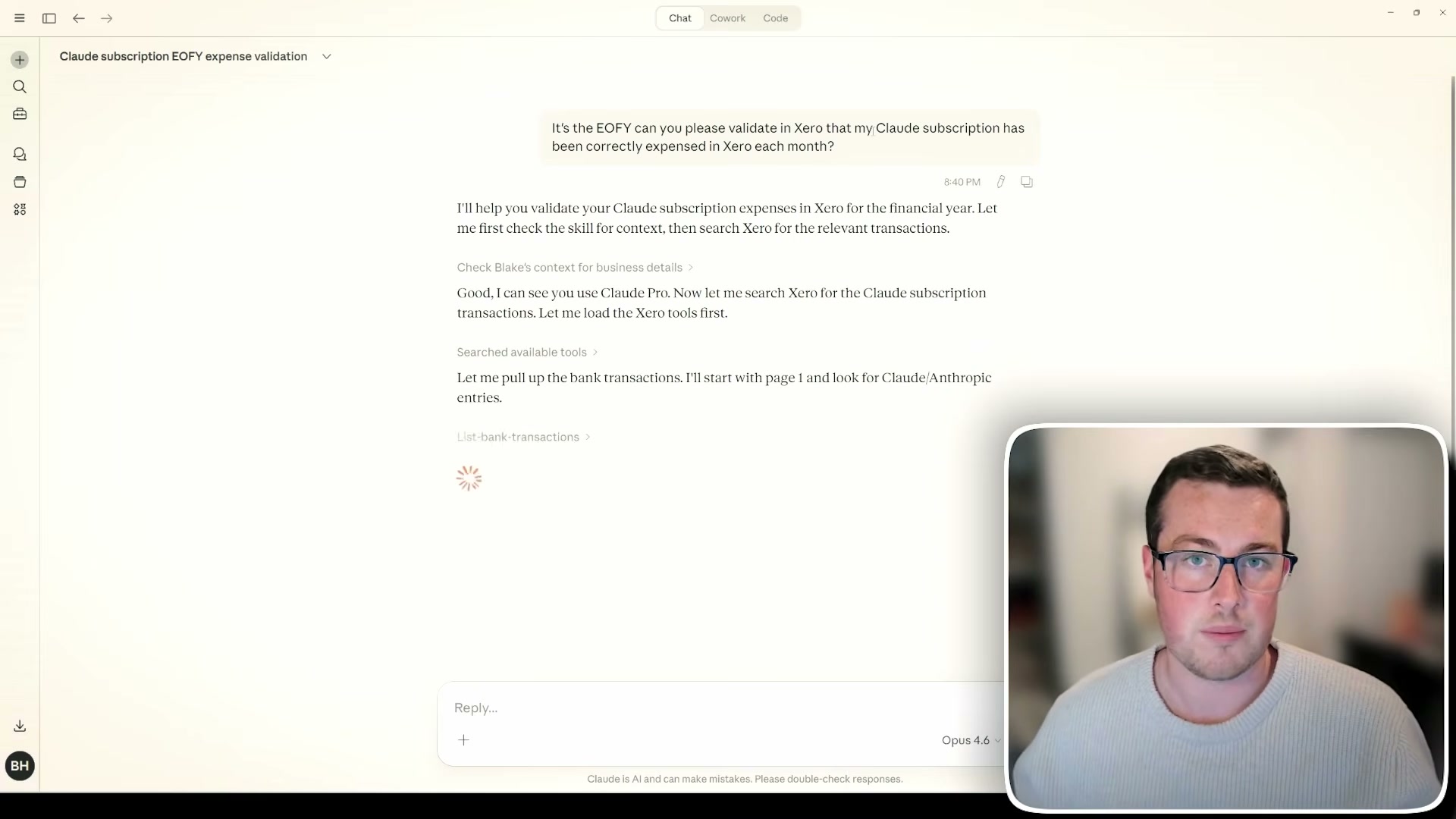
End of financial year means making sure everything is correctly logged. I asked Claude to review my subscription costs for the last financial year and verify they were all correctly in Xero.
Claude went through each month of transactions, found relevant entries (in this case, Claude/Anthropic bills for February, January, and December), and produced a clear summary: transactions found, total amount, GST claimed, months missing, and reconciliation status. It even picked up a price difference from when I upgraded from Claude Pro to Claude Max.
Quick Win 3: Live Financial Dashboards
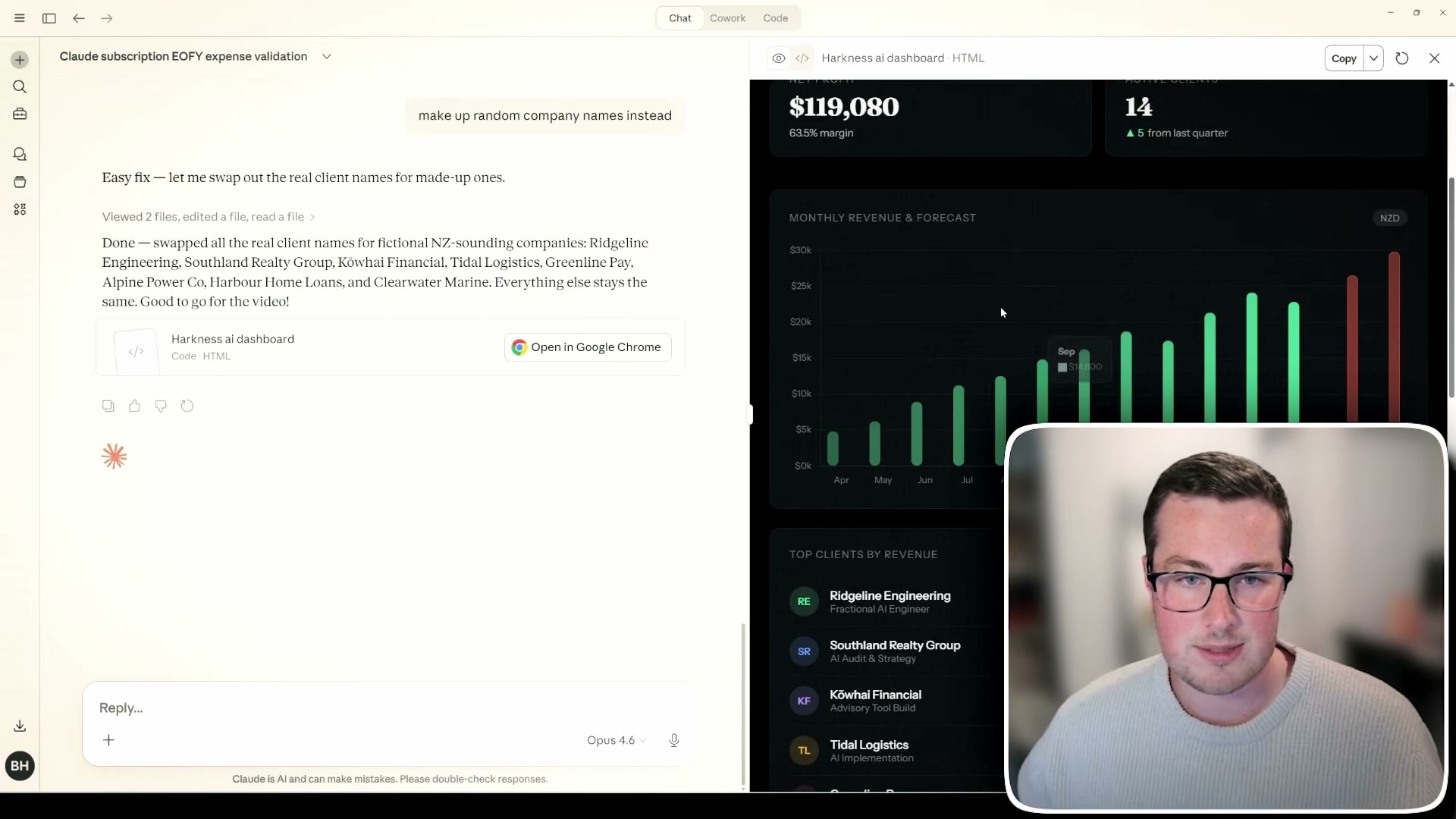
Because Claude can pull your live financial information, analyse it, and forecast, you almost don’t need your Power BIs or Excel spreadsheets anymore. Claude becomes your dashboard.
I asked it to generate a financial overview graphic with income over time, forecasting, and key metrics. It developed an HTML file with total revenue, expenses, client count, profit margins, and monthly revenue forecasting - all from plain English instructions.
Want it updated? It pulls fresh data from Xero. Want to integrate other data sources like client emails or social media statistics? It can all be interconnected into one dashboard.
Claude Xero integration: common questions
Can Claude integrate with Xero?
Yes. Claude connects to Xero through a custom connection you create in the Xero Developer Portal and then add to the Claude desktop app as an MCP connector. Once it’s live, Claude can read and write data in your Xero organisation, limited to the scopes you approve. In my own business that means logging receipts, checking transactions against the books, and pulling live figures for reporting.
How Do You Connect Claude to Xero?
There are three steps. Create a custom connection app at developer.xero.com, choose the scopes Claude is allowed to use, then paste the MCP configuration into Claude under Settings → Developer → Edit Config with your own Client ID and Client Secret swapped in. Restart Claude, open Connectors, and Xero should be switched on. Ask Claude to use Xero and it will confirm which scopes it can see.
What Does the Xero Custom Connection Cost?
The custom connection is around $10/month as an add-on to your existing Xero subscription, set up through the Xero Developer Portal. On top of that you need a Claude licence, which is around $40/month. There’s nothing else to buy - no middleware, no per-automation fees.
Do You Need to Code to Automate Xero With Claude?
No. The only technical step is pasting a block of MCP configuration into Claude’s config file and replacing the placeholder Client ID and Client Secret with your own. Everything after that happens in plain English - you describe what you want done and Claude works out the rest. If you can follow the setup steps above, you can run this.
What Xero Scopes Should You Grant Claude?
Start with read-only and expand once you trust it. Every Xero scope comes in two versions: accounting.transactions.read only lets Claude pull information out, while accounting.transactions lets it create and edit entries as well. My setup uses full access on transactions so Claude can log receipts, full access on contacts so it can create new ones, read-only on reports, read on settings, and attachments. Tailor it to how your own Xero environment is set up.
Can Claude Log Receipts Into Xero Automatically?
Yes, and it’s the fastest quick win. Drag receipt images into Claude and ask it to log them as expenses - it reads each one, extracts the value, GST and taxes, and sorts the categorisation. It also detects duplicates, so the same expense doesn’t get logged twice. Before it writes anything it asks which bank account to attach to, what account codes to use, and whether any dates are missing.
Is It Safe to Give Claude Access to Your Xero Account?
You decide exactly what it can touch. Access is capped by the scopes you select when you create the custom connection, so a read-only setup cannot write to your books at all. Keep your Client Secret completely private, because anyone holding it has whatever permissions you configured. On the first connection Claude also runs a human-in-the-loop confirmation, showing you each action before it happens so you can approve or deny it.
Can Claude Build Financial Dashboards From Xero Data?
Yes. Because Claude pulls live data straight out of Xero, it can build a dashboard on demand instead of you maintaining a spreadsheet. I asked it for a financial overview and it generated an HTML file with total revenue, expenses, client count, profit margins and monthly revenue forecasting, all from plain English instructions. Ask for an update and it refreshes from Xero, and you can fold in other data sources like client emails or social media statistics.
Why This Matters
AI chatbots are a great tool, but if they don’t have business information and context about you and the systems you’re using, they’re very limited. That’s why connecting Claude into your actual software and systems is so powerful.
You can use it as a search engine to pull information from Xero, but it also goes to the next level with dashboarding that replaces your Excel or Power BI. This is only the tip of the iceberg - every business has their own individual challenges, and the advantage of using Claude is that you just describe your challenge in plain English and it generates solutions.
If you’d rather have this set up properly than work through it yourself, that’s the sort of work I do. I’m an AI engineer based in Christchurch and I help New Zealand businesses connect Claude into the systems they already run - Xero, Gmail, their CRM - so it does the admin instead of the team. Have a look at my done-for-you Claude setup if you want it working in your business, or get in touch.