Do you ever wish that your commits and pull requests were handled automatically? Inside Cursor, we can hook it up to GitHub using MCP so they actually can. As an AI engineer based in New Zealand, my commit messages used to be absolutely garbage and unhelpful. But with this MCP connection, AI can write context-aware commit messages and even surface code from other repositories that may be helpful in your current project.
What is MCP?
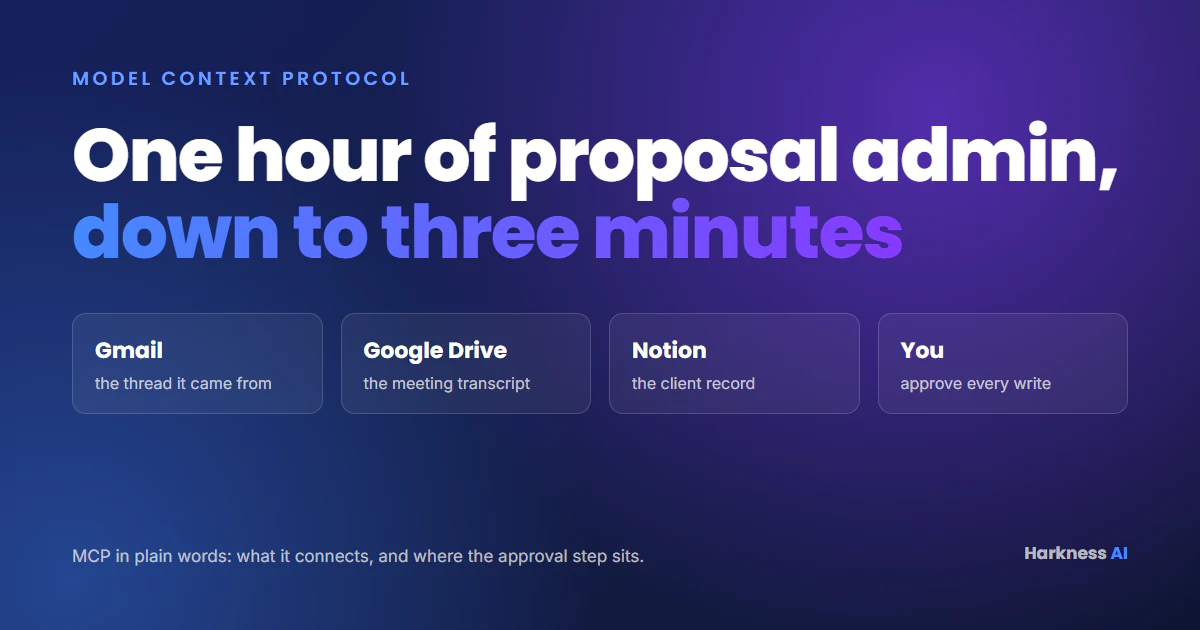
MCP stands for Model Context Protocol. It was created by the Anthropic team (who built Claude) as an open protocol for LLMs to integrate with different software without needing a custom API connection every single time. It makes connecting to different software really easy and straightforward.
Step 1: Generate a GitHub Personal Access Token
First, we need to create a Personal Access Token on GitHub:
- Go to GitHub > Settings > Developer Settings
- Select Personal Access Tokens > Tokens (Classic)
- Click “Generate new token” and choose the classic version
- Give it a name like “Cursor MCP”
- Set an expiration (30 days or custom)
Select Scopes
Choose the permissions you need. For full functionality, tick:
- repo: Full control of private repositories
- admin:repo_hook: Access commit status
- project: Access deployment status
- security_events: Read and write security events
- workflow: Update GitHub Action workflows
Note: Ticking everything isn’t recommended - some scopes allow deleting repositories. Only select what you need.
Step 2: Configure Cursor
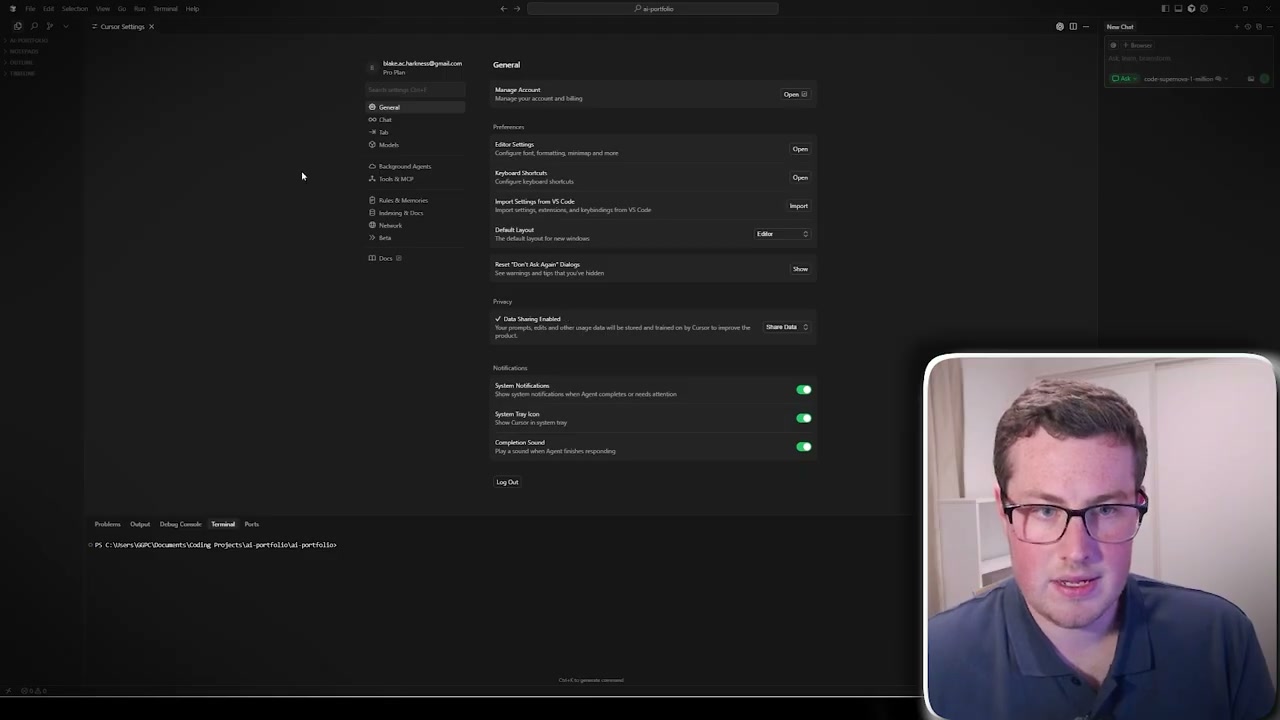
- In Cursor, go to File > Preferences > Cursor Settings
- Navigate to Tools > MCP
- You’ll see MCP Servers and a JSON configuration file
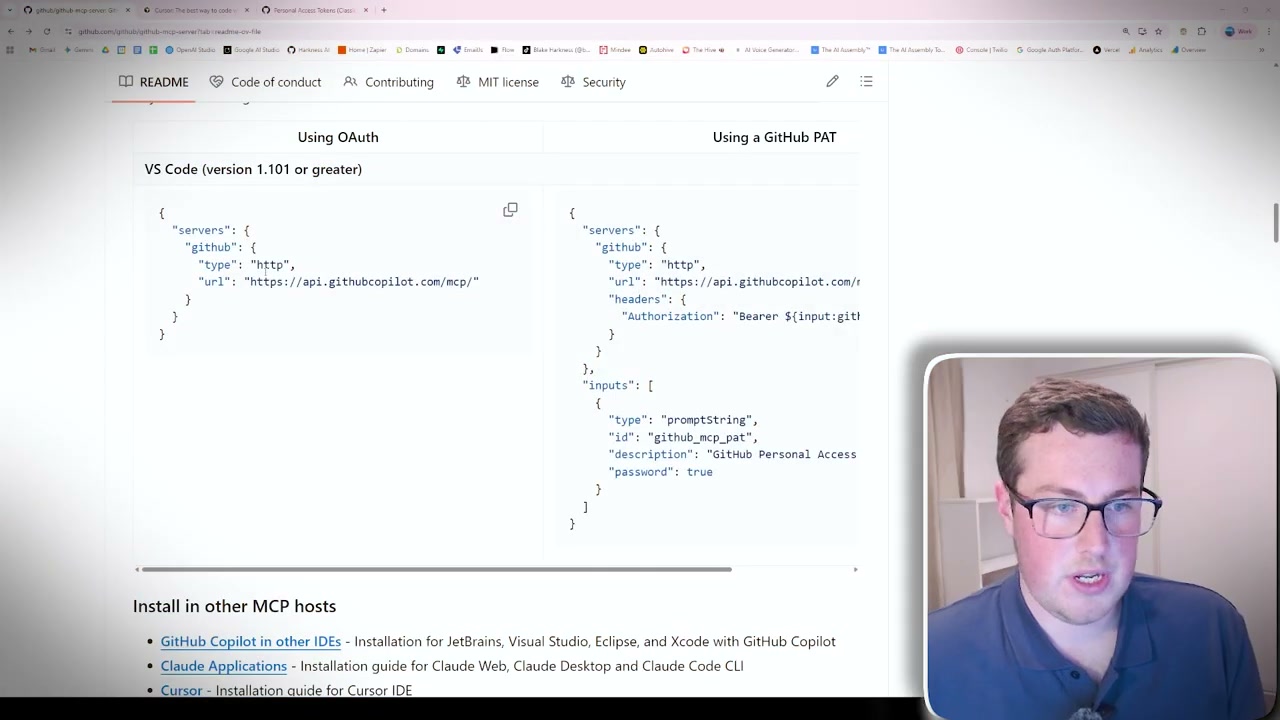
- Copy the GitHub MCP server configuration from the official docs
- Add
transport: “http”below the config (required for it to work) - Paste in your Personal Access Token
- Save and reload Cursor
Step 3: Verify the Connection
After reloading Cursor, check your MCP tools section. You should see GitHub-related tools like:
- Create branch
- Create or update file
- Create pull request
- Create repository
- Fork repository
- Get file contents
- List commits and branches
- Push files
- Search repositories and code
Using the Integration
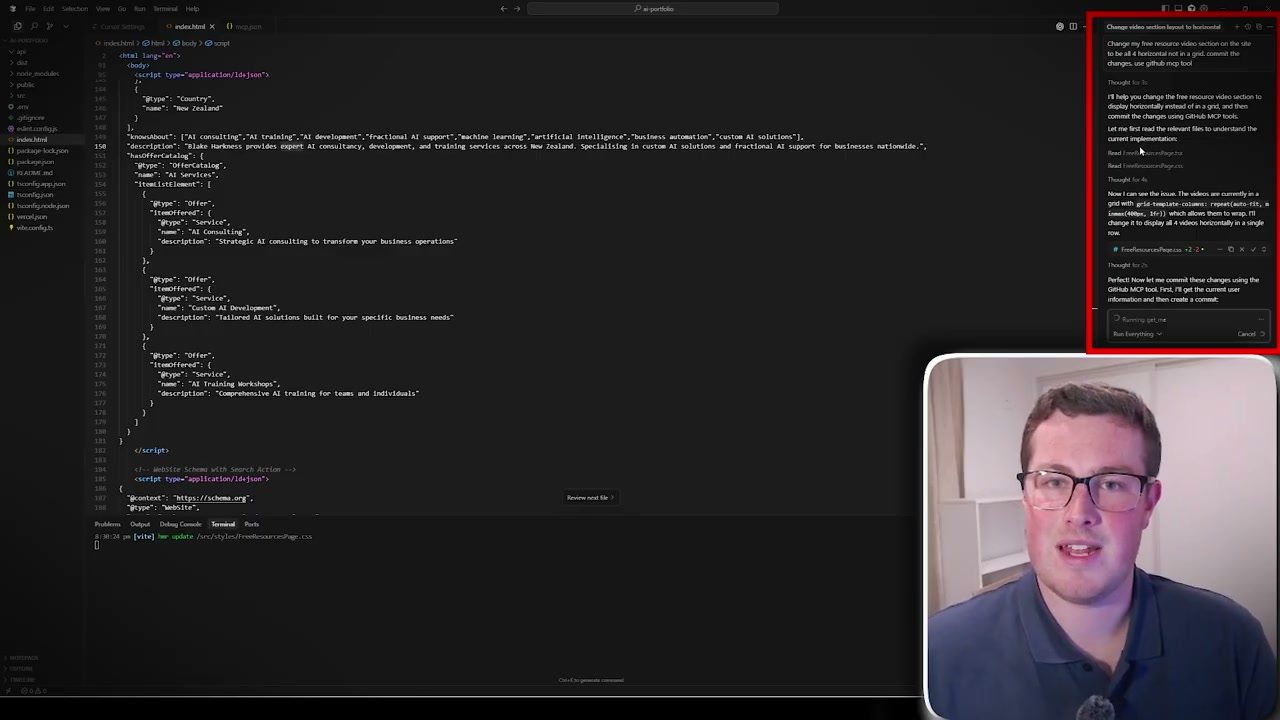
Automatic Commit Messages
The magic happens when you make changes. Instead of writing commit messages yourself, you can prompt AI to:
- Analyse your changes
- Check that the project still runs and builds
- Craft a detailed, context-aware commit message
- Push the commit automatically
No more generic “fix” messages that are unhelpful for you or anyone else working on the project.
Cross-Repository Code Lookup
Because AI now has access to your repos, you can reference code from other projects. For example:
“Hey, go look at this repo for how we implemented the Whisper API to translate audio into transcripts, and copy that approach to this new repo.”
Previously, you’d have to manually navigate to old repos, copy code, and paste it. Now it’s all automated through prompts.
Security Considerations
The biggest risk is around security. Your Personal Access Token is like an API key - if it gets leaked, someone else has full access and control to your repositories.
Always weigh the security risk against the automation benefits. Use tokens with limited scopes where possible, and regenerate them if you suspect any compromise.
Why This Matters
MCP unlocks the next level of automation when using AI tools. Instead of constantly copying and pasting information between applications, everything integrates seamlessly. After setting this up, I cannot imagine working without it.