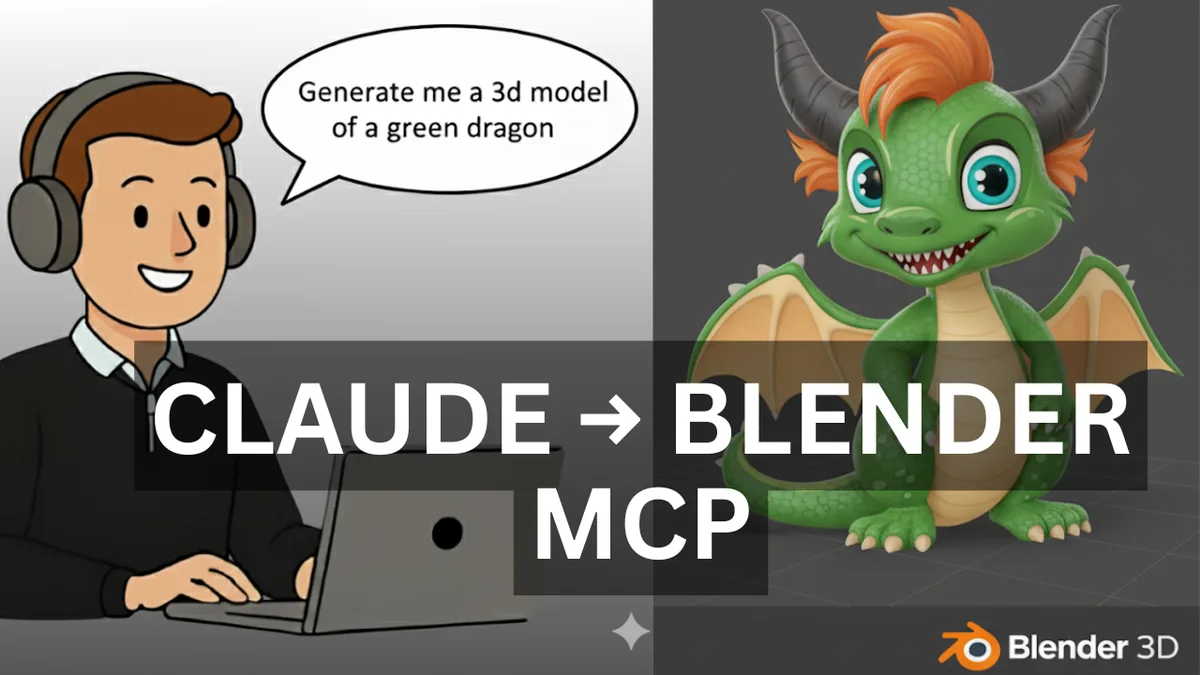
Creating 3D models traditionally requires extensive software knowledge and design skills. However, recent developments in AI integration now allow anyone to generate 3D content using simple text prompts. This guide demonstrates how to connect Claude AI with Blender through the Model Context Protocol (MCP) to transform written descriptions into actual 3D models.
Understanding the Technology
The integration works by leveraging Claude's ability to generate Python code that executes directly within Blender's environment. When you provide a text prompt, Claude interprets your request, writes the appropriate Blender Python API commands, and executes them through the MCP connection. This process happens in real-time, allowing for immediate visual feedback.
Required Prerequisites
Before beginning the setup process, ensure you have:
- Python installed from python.org
- Blender 3D software (available at blender.org)
- Claude Desktop application (downloadable from claude.ai)
- The Blender MCP add-on from the official GitHub repository (github.com/ahujasid/blender-mcp)
Installation Process
Step 1: Install UV Package Manager
Open your command prompt and execute:
pip install uvStep 2: Configure Claude Desktop
- Download and install Claude Desktop
- Navigate to File > Settings > Developer > Edit Config
- Copy the Blender MCP server configuration code from the GitHub repository
- Paste the configuration into Claude's config file
- Save the file and completely restart Claude
Step 3: Install Blender Add-on
- Download the addon.py file from the Blender MCP GitHub repository
- Open Blender and go to Edit > Preferences > Add-ons
- Select "Install from Disk" and navigate to your downloaded addon.py file
- Install and enable the Blender MCP add-on
Step 4: Establish Connection
- Press 'N' in Blender to open the side panel
- Navigate to the Blender MCP tab
- Click "Connect to MCP Server"
- Verify the connection shows "Disconnect from MCP Server" when active
Practical Applications and Limitations
What Works Well
The system excels at creating basic geometric shapes and simple compositions. Commands like "create a sphere," "add a cylinder," or "make a snowman" produce reliable results. The AI successfully handles:
- Basic primitive shapes (cubes, spheres, cylinders, cones)
- Simple positioning and scaling operations
- Multiple object creation and arrangement
- Basic material assignments
Current Limitations
Complex organic shapes and detailed models remain challenging. The system struggles with:
- Intricate geometries requiring advanced modelling techniques
- Detailed surface features and complex textures
- Precise dimensional specifications
- Advanced animation or rigging tasks
Advanced Features and Extensions
Poly Haven Integration
Enable texture capabilities by checking the Poly Haven option in the Blender MCP panel. This allows Claude to apply realistic materials and textures to your models, significantly enhancing visual quality.
Rodin 3D Integration
For professional-quality results, the system can integrate with Rodin 3D's AI model generation service. This feature transforms simple prompts into highly detailed, textured models comparable to professional 3D artwork. Note that this service requires API credits beyond the initial free trial.
Image-to-3D Conversion
The Rodin integration also supports converting 2D images into 3D models, opening possibilities for recreating real-world objects or artwork in three-dimensional space.
Can Claude Make 3D Models?
Yes - Claude can build 3D models inside Blender once the two are connected through MCP. You describe what you want in plain language, Claude writes the matching Blender Python code, and that code runs live in your open Blender scene so the object appears as you watch. It is genuine text-to-3D: the written prompt is the only input required.
What Is blender-mcp?
blender-mcp is the open-source add-on that lets Claude drive Blender over the Model Context Protocol. It ships as an addon.py file from github.com/ahujasid/blender-mcp, and once it is installed and enabled it exposes Blender to Claude Desktop as an MCP server. Claude then sends Blender Python commands straight into the scene you have open.
Is blender-mcp Free?
Yes - the blender-mcp add-on is free, and so are Blender, Python and Claude Desktop. The only paid element of this workflow is optional: the Rodin 3D integration needs API credits once its initial free trial is used up. Every step in the setup above costs nothing.
How Do You Connect Claude to Blender?
Four things need to be in place: Python, Blender, the Blender MCP server configuration pasted into Claude Desktop’s developer settings, and the addon.py file installed and connected from Blender’s side panel. Restart Claude Desktop completely after saving the config, then press N in Blender, open the Blender MCP tab and click Connect to MCP Server. The link is live when the button changes to “Disconnect from MCP Server”.
Do You Need to Know Python to Use Claude with Blender?
No - Claude writes the Blender Python for you. Your job is describing the model in plain language; Claude handles translating that into Blender API calls and executing them through the MCP connection. The only command-line step in the entire setup is installing the UV package manager with pip.
Can Claude Apply Textures in Blender?
Yes, provided you tick the Poly Haven option in the Blender MCP panel. That gives Claude access to Poly Haven so it can apply realistic materials and textures to the models it has just built, which lifts visual quality considerably. Without it, Claude is limited to basic material assignments.
What Is the Rodin 3D Integration?
Rodin 3D is an optional AI model-generation service that plugs into the same setup when you need far more detail. It turns a short prompt into a highly detailed, textured model comparable to professional 3D artwork, and it also converts 2D images into 3D models. It runs on API credits once the initial free trial is exhausted.
Is Claude with Blender Good Enough to Replace Traditional 3D Modelling?
Not yet - it is an accessible entry point and a prototyping tool rather than a replacement. It is reliable for primitive shapes, positioning, multi-object scenes and basic materials, but it still struggles with intricate organic geometry, precise dimensional specifications and rigging. For beginners it removes the software-knowledge barrier; for experienced modellers it is a fast way to block a scene out before refining it by hand.
Conclusion
The Claude-Blender integration showcases how AI can transform complex software interaction into intuitive, conversational experiences. Whilst current limitations prevent it from replacing traditional 3D modelling workflows entirely, it provides an accessible entry point for newcomers and a valuable prototyping tool for experienced users.
As AI integration continues evolving, we can expect similar developments across other creative software platforms, fundamentally changing how we interact with digital tools and bringing professional-grade capabilities within reach of broader audiences.