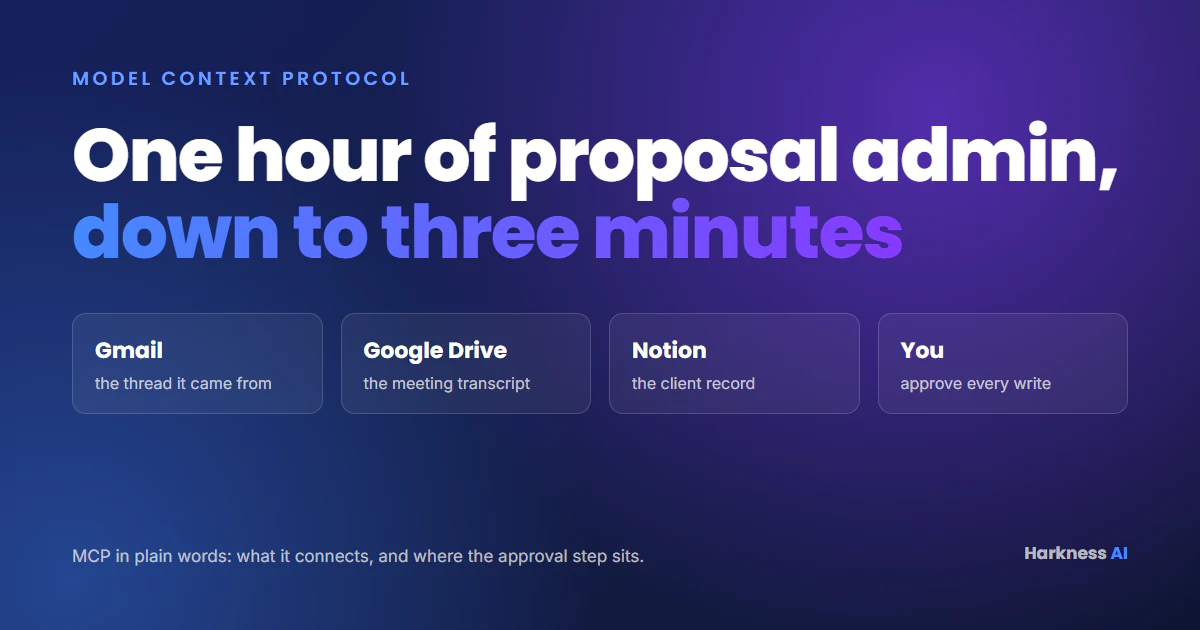
If you’re still copying and pasting information in and out of your AI chatbot, you’re doing it wrong. I was too, until I discovered MCP. Now my Claude AI chatbot talks directly to Gmail, Google Drive, and Notion, and what used to take me an hour of admin now takes a 3-minute conversation.
Here’s what MCP actually is, how I set it up running my AI consultancy in New Zealand, and how I used it for business process automation - turning client proposals from meeting transcript into finished document.
The Problem: AI Knows Nothing About You
On a basic level, AI is advanced pattern recognition. It’s trained on massive amounts of internet data, but it knows nothing about you or your business. So when you ask it to write an email or generate a report, the output is generic.
To fix this, we end up copying in context from emails, documents, and meeting notes. Then we copy the output back into another system. You end up in this endless loop of asking AI a question, copying the answer, pasting it somewhere else, and going round and round. It’s not integrated.
What Is MCP?
You may have heard of APIs before, where software systems can send and receive information. The problem is every tool had a different implementation, so there was no standard way to connect them.
MCP is a layer on top of that. Think of it as a USB port for your software. You can plug and play your AI model directly into Outlook, Gmail, Xero, Notion, whatever you use. One standard connection method for everything.
My Setup: Three Connected Systems
I have Claude integrated with three core systems through MCP:
- Gmail: So it can search and read my email threads with clients.
- Google Drive: Which holds all my meeting transcripts from Google Meet and Gemini.
- Notion: Which is my project management system and database.
With these three connections, Claude has full context on every client interaction, from the first meeting to the latest email, without me copying a single thing.
The Workflow: From Client Call to Proposal in Minutes
Here’s what my old process looked like. I’d meet with a new client, and AI meeting notes would transcribe the conversation (that part was already great). Then there’d be a back and forth over email or WhatsApp. I’d go into my project management system and write up notes on where things were at. And when it came time to write the proposal, I’d have to go back through all my notes across different systems and build it from scratch. That could easily take an hour.
Now I tell Claude: based on this client and this project, go through my meeting transcripts on Google Drive, check my email threads in Gmail, pull any additional context from Notion, read my client proposal skill, and generate the full proposal as a new page in Notion.
The result is a complete proposal with executive summary, scope of work, user journey flow, technical architecture, and pricing. And because it’s pulling from actual meeting transcripts where both you and the client are speaking, the accuracy is genuinely impressive. It captures the client’s own words, which means faster sign-off because they see their exact problems reflected back to them.
How to Set This Up Yourself
If you want to try this, I’d recommend starting with Claude as it’s the easiest to get going. Once you have the desktop version or web browser open, click the add button and you’ll see connectors at the bottom. Browse the available options, including CRMs, design tools, project management, and more.
If your tool isn’t listed, you can add a custom connector. Search for your tool’s MCP server on GitHub (for example, “Xero MCP server”), and you’ll find setup instructions. Copy and paste the configuration in and you’re connected.
Creating a Skill: Your AI’s Playbook
A skill is a set of instructions that tells the AI how to complete a specific task. For my client proposals, I created a skill that defines the structure, format, tone, and information sources.
To build your own, start by giving Claude context about you, your business, and what you want the output to look like. Then ask it to ask you more questions. What triggers you to create a proposal? What are your information sources? What format do you use? The more detail you provide, the better the output.
Once you’re happy, click copy to your skills and it’s saved for every future conversation.
One Critical Setting: Human in the Loop
When setting up MCP connectors, I have read actions set to auto-approve. If Claude wants to search my email or look through my Drive, it can do that without asking. But for any write, edit, or delete action, like creating a Notion page, sending an email, or modifying a database, it requires my approval first.
This is essential. Always verify before trusting it completely, especially for actions that touch client-facing systems.
Why This Matters
There are three benefits I keep coming back to. First, full context access. AI is a prediction engine, and the more information it has about you and your business, the better the outputs. Second, serious time savings on tedious admin. Whether it’s creating a database, updating project management, or building proposals, there’s time saved everywhere. Third, less context switching. Instead of jumping between Xero, Gmail, Notion, and remembering how each UI works, I do everything from one window inside Claude. Less brain switching means more focus on the actual work.
Stop copying and pasting. Connect your tools and let AI do the heavy lifting.