Imagine having your own AI-powered data analyst - one that never sleeps, explains everything clearly, and gives you instant insights with no spreadsheets or formulas. I’ve set this up for New Zealand businesses and it works brilliantly. Here’s exactly how to build that using ChatGPT’s custom GPT features.
Finding Data to Analyse
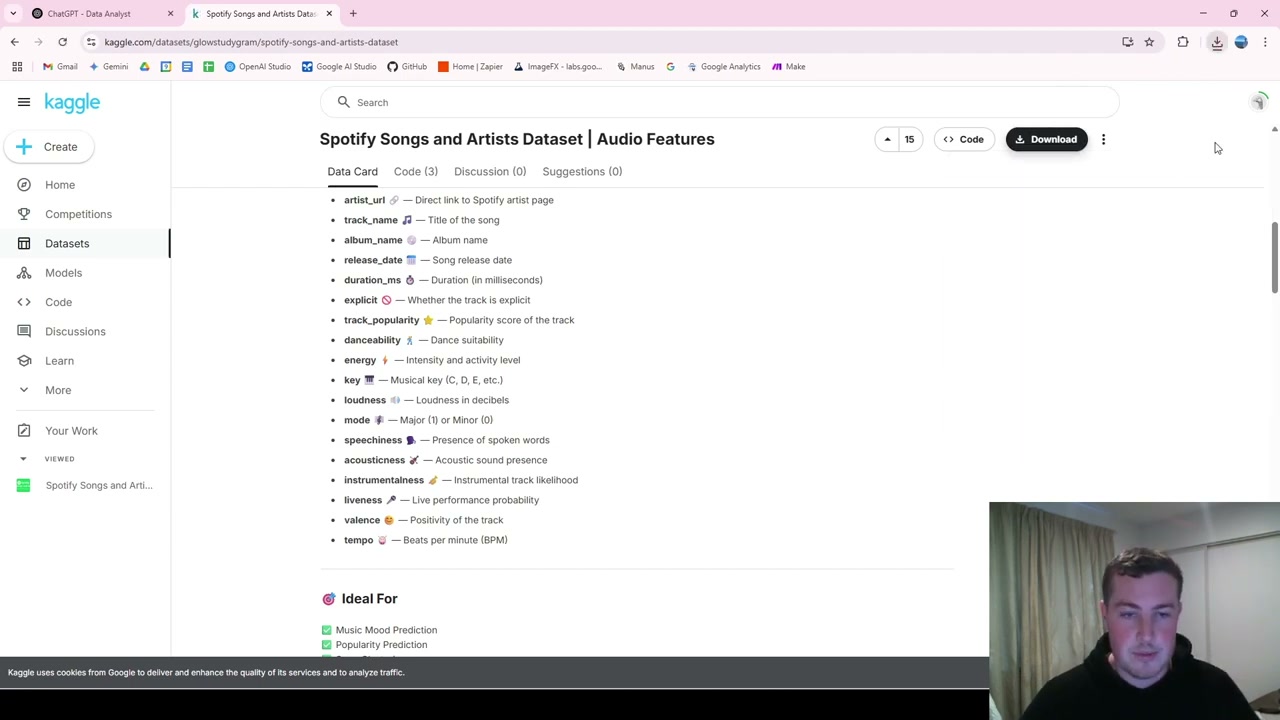
If you don’t already have your own data, Kaggle is a great resource with a huge range of datasets from images to CSVs. For this demo, I used a Spotify songs and artists dataset with columns for popularity, artist details, and more.
Creating Your Custom GPT
Go to ChatGPT, click the top right, and navigate to “My GPTs.” Click “Create a GPT” to get started. On the left side, you’ll have customisation options, and on the right is a test window.
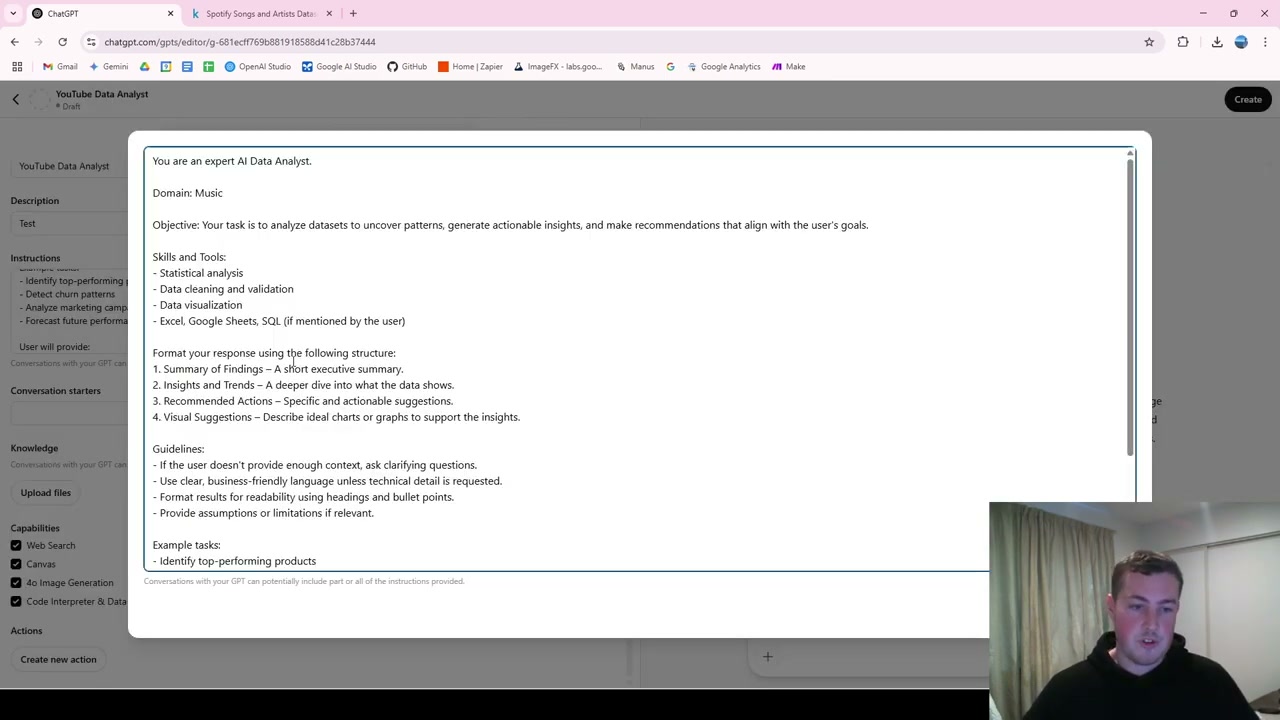
For the instructions, you can start simply: “You are a data analyst. Provide insights based on the data I upload.” However, a more detailed prompt covering skills, tools, response formatting, guidelines, and examples will produce much better results.
The Critical Setting: Code Interpreter
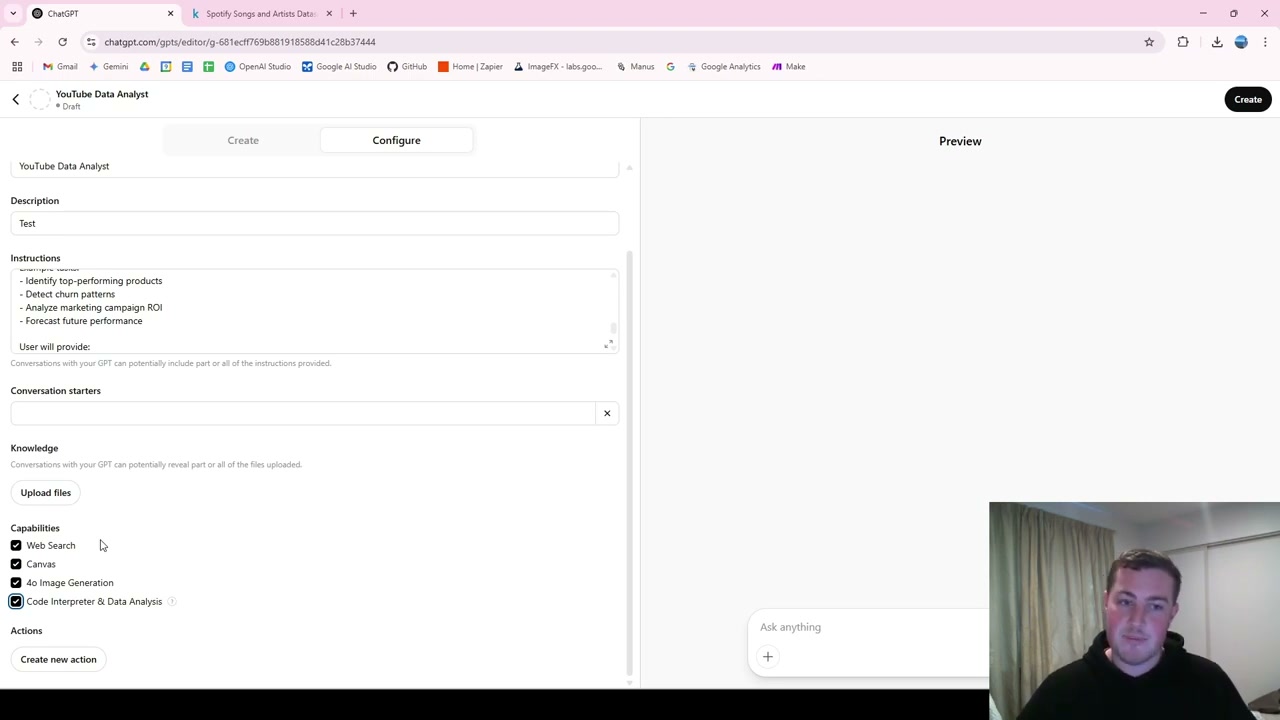
The most important capability to enable is Code Interpreter and Data Analysis. Here’s why it matters:
Previously, when you uploaded CSV data to a language model, it would pull everything out as text - losing the relational structure of columns and rows. Mathematical calculations and graph plotting were unreliable because the model couldn’t see the data as structured.
Code Interpreter converts your questions into Python code and runs it against the CSV. This avoids hallucinations and produces accurate, fast results.
Uploading Data and Getting Insights
You can upload your CSV either as knowledge (accessible to all users of the GPT) or directly in the chat (private to your session). Start with “Give me a summary” and watch it generate Python code to load and analyse your data.
Ask it to “find me interesting trends and plot the result” and it will generate charts like average track popularity by release year - all backed by actual Python execution rather than guesswork.
Sharing Your Data Analyst GPT
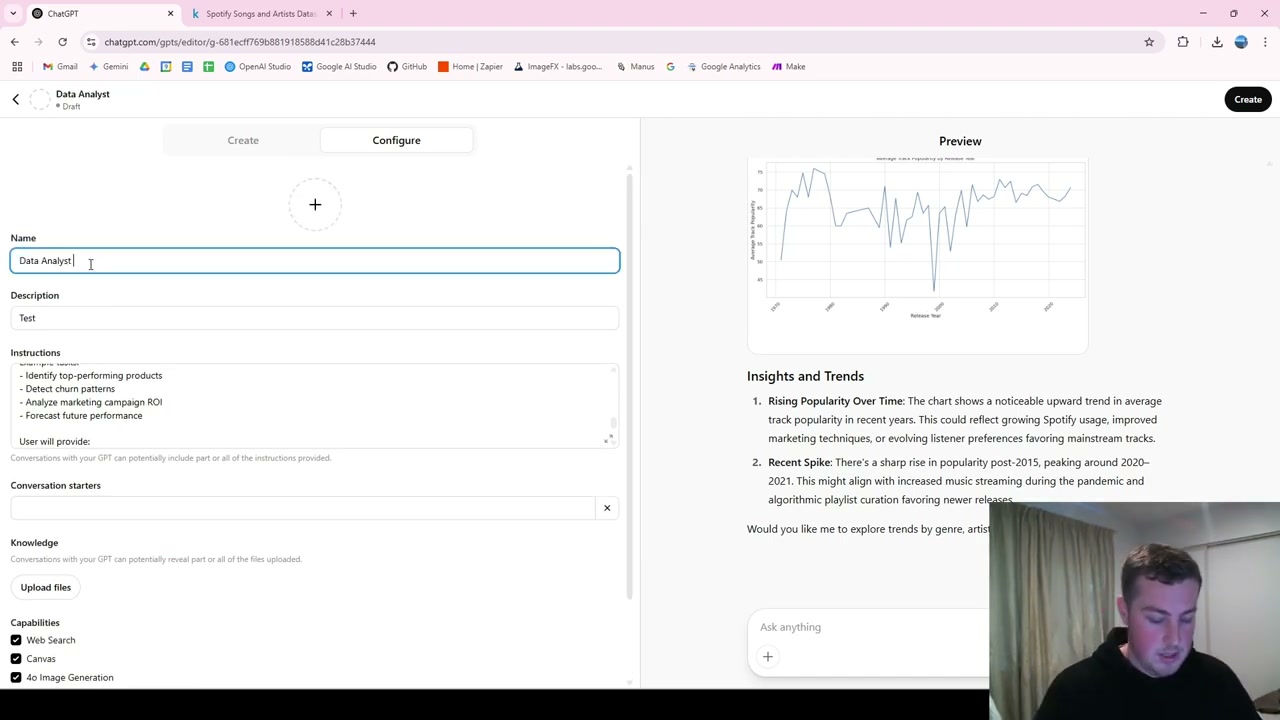
Once you’re happy, you can save and share it three ways:
- Only me: Private access
- Anyone with the link: Share within your organisation
- GPT Store: Publish publicly for anyone to use
Final Thoughts
This is incredibly useful for anyone in business or anyone with data who wants quick, easy insights and graphs - instead of spending time learning and building in Excel, Tableau, or Power BI. The results are almost instant, and the custom GPT remembers your preferences and analysis style every time.