What if instead of scrolling through long text responses from AI, you could actually interact with it? Click, scroll, navigate through a custom UI designed specifically to help you learn a topic. That’s exactly what Gemini’s new Visual Layout feature does.
It turns plain text chat into an interactive workspace. Not just telling you about a concept, but actually building you an interactive dashboard to learn and understand it faster. Here’s how to take any topic - whether that’s study content or planning a trip from New Zealand - into a visual experience, all within the Gemini app.
How to Enable Visual Layout (Labs Feature)
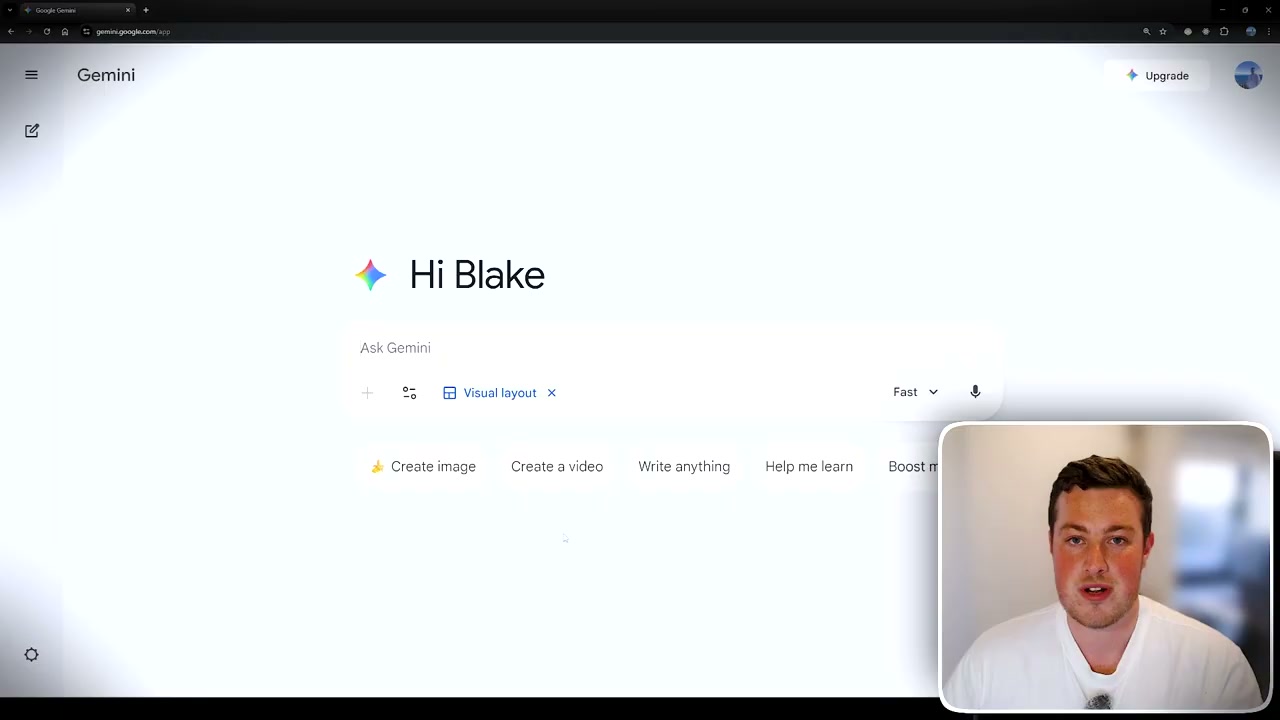
This feature was released with Gemini 3.0 Pro and is currently available on personal accounts, including free accounts. To enable it:
- Go to the tool section in Gemini
- Look for “Visual Layout” with a Labs icon indicating it’s experimental
- Click to enable it
Once enabled, any information you pass through Gemini will build out an interactive dashboard for you to interact with.
Use Case 1: NCEA Level 2 Physics Study Guide
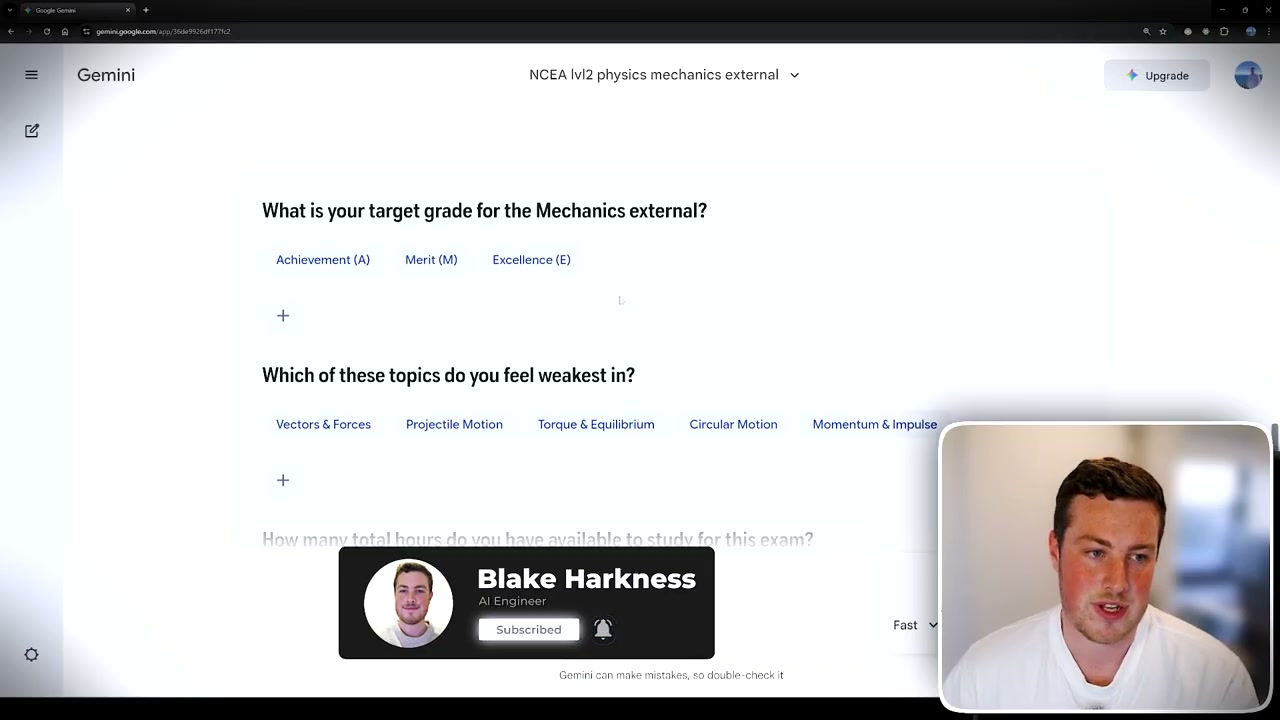
For this example, I used NCEA Level 2 Physics mechanics external. You can be broad (just say “artificial intelligence”) or very specific. You can also upload files like lecture slides if you want the AI to use that information.
Gemini searched through NCEA Level 2 documents online and returned a full UI design showing:
- A summary explaining it’s one of the most content-heavy standards at six credits
- Core learning modules: kinematics, forces, torque, equilibrium, circular motion
- Skills required and key formulas you can click into
Interacting with the Dashboard
The dashboard asks interactive questions: What’s your target grade? Which topic do you feel weakest in? How many hours do you have to study?
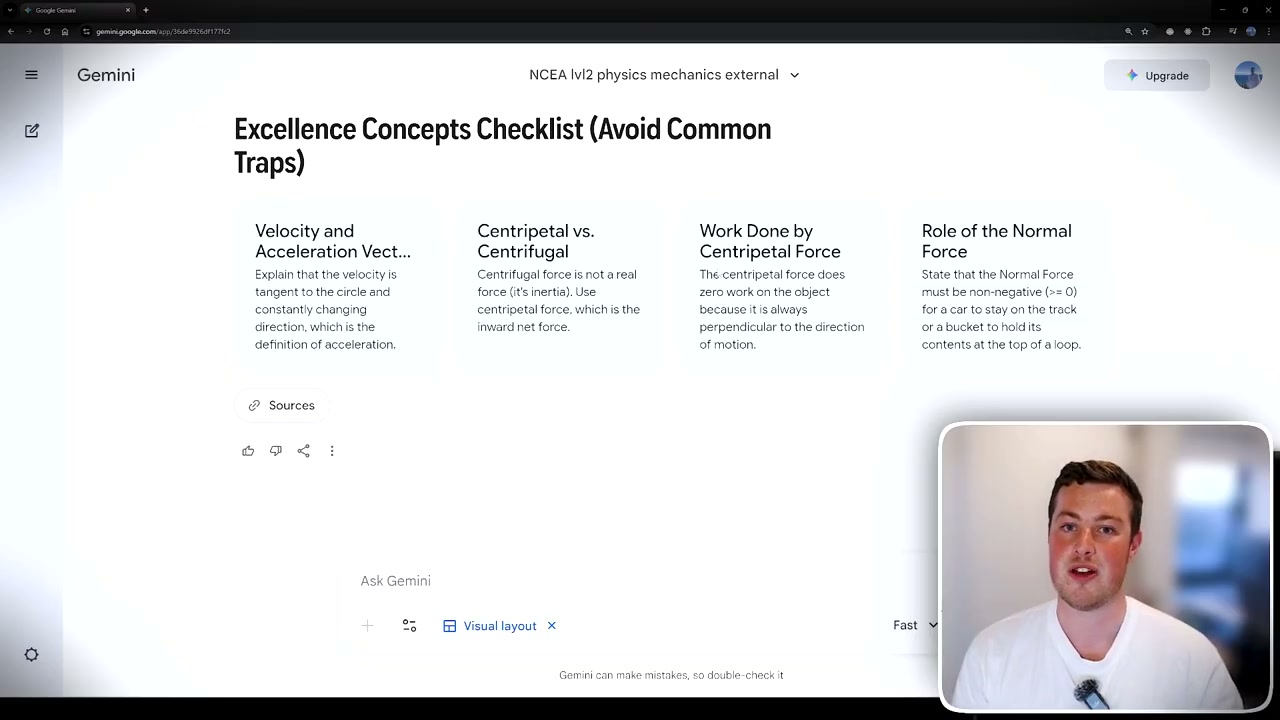
I selected excellence, said I was weak in circular motion, and only had 6 hours. It then generated an “ultra-efficient 5-7 hour excellence plan” with:
- Key areas for excellence in circular motion
- Conceptual focus and essential explanations
- Hour-by-hour breakdown with specific questions and time allocations
- A checklist of everything needed for excellence
Embedded Videos and Deep Dives
The dashboard even pulled up relevant YouTube videos (like centripetal forces tutorials) that you can watch directly within Gemini without leaving the app. You can click on scenario questions to generate more content, or explore other concepts interactively.
Use Case 2: Planning a 14-Day Trip to Japan
For trip planning, I asked Gemini to help plan a 14-day trip to Japan. It searched the web, read Reddit, and gathered information to create an interactive UI.
The result: a “14-Day Golden Route Adventure in Japan” complete with:
- Images pulled from online sources
- Essential travel logistics (rail pass recommendations)
- Day-by-day itinerary you can click and interact with
- Photos for each location
- Detailed schedules for each day
Customising Your Itinerary
The interface asks for your preferences:
- Packed with activities vs. relaxation (adjustable slider)
- Theme importance: historic temples, modern pop culture, food, nature, hiking, shopping, nightlife
- Flight logistics (same city in/out?)
After submitting preferences, Gemini revised the plan focusing on food and culinary experiences with a sightseeing-heavy pace. You can keep iterating - asking to spend fewer days in specific places, add activities, or find discounts on hotels and flights.
Why Gemini is Winning Right Now
Gemini is doing what ChatGPT is trying to do - being an all-in-one UI where you don’t need external websites. But while ChatGPT’s version feels clunky, Gemini naturally flows with images, UI layouts, and interaction.
Over the past two weeks, I’ve actually preferred Gemini because:
- Video generation inside the app (best model currently)
- Nano Banana for image generation and editing
- Gemini 3.0 LLM performing best across benchmarks
Google is really stepping up their pace in the AI race, and Visual Layout is a prime example of innovation that actually improves the user experience.
Getting Started
If you want to try Visual Layout yourself:
- Head to Gemini with any Google account (free works)
- Enable Visual Layout in the Labs/Tools section
- Enter any topic you want to learn or plan
- Interact with the generated dashboard and iterate based on your needs
The feature transforms AI from a text generator into an interactive learning and planning companion.