Google just released a free Claude Code alternative and barely anyone’s talking about it. It’s called Gemini CLI and it allows you to run the latest Gemini 2.5 Pro model straight from your terminal inside your own codebase - completely for free. You get 60 free requests per minute, up to 1,000 per day, with no API key and no subscription. Whether you’re a developer in New Zealand or anywhere else, this is worth trying.
Prerequisites
First, install Node.js. You can use any IDE - Cursor, VS Code, or run it directly from the terminal. For this walkthrough, I created a blank React TypeScript project using Vite as the build tool.
Installation
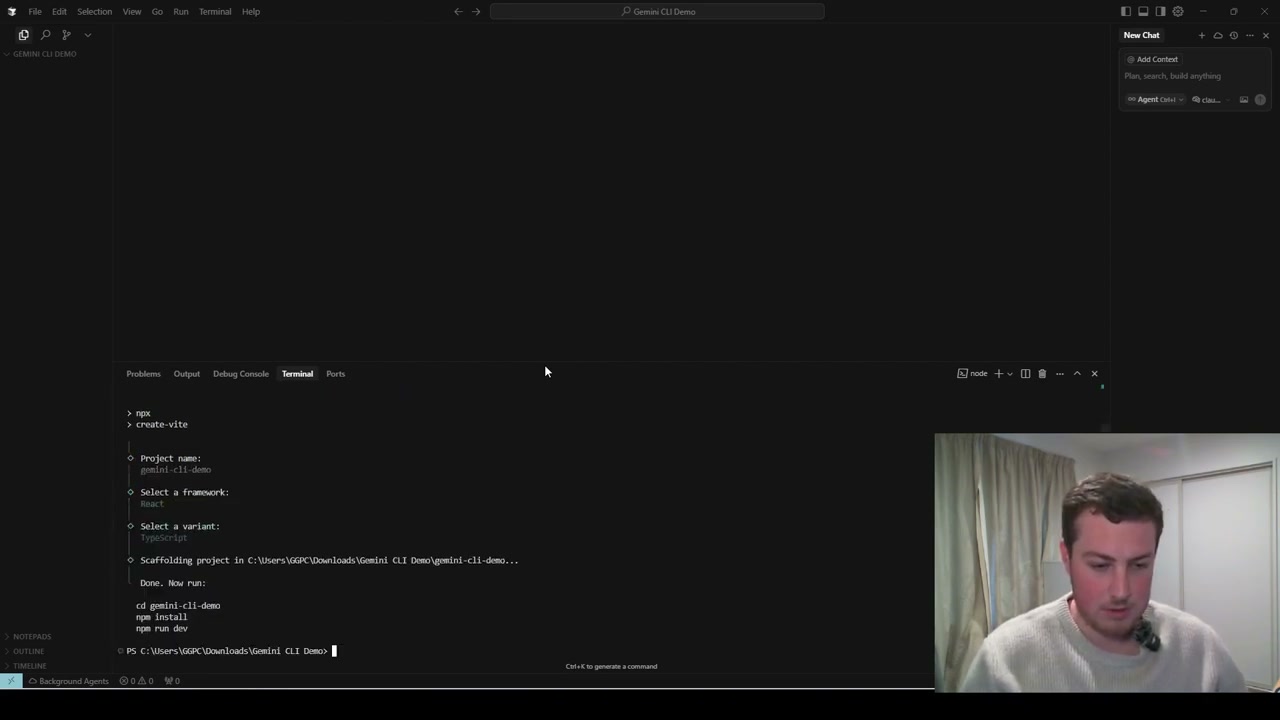
Open a new terminal (keep your dev server running in the first one) and run the Gemini CLI install command. Once installed, call Gemini to initiate it in the terminal. You’ll see the Gemini logo, some tips, and a theme selector.
Authentication
There are three authentication methods:
- Login with Google - Free Gmail account, 60 requests/minute up to 1,000/day
- Gemini API Key - Also has free limits, with easier model selection
- Vertex AI - Google’s more technical AI suite for pushing past daily limits
Note: it doesn’t work with organisational accounts - you need a personal Google account.
Building a Project
I asked it to create a web portfolio for a person named Blake, showcasing AI projects and recommendations. Gemini followed the same general process as other AI coding tools: reading the project files, understanding the structure, and presenting a full plan before making changes.
The plan included:
- A hero section, about section, AI projects showcase, testimonials, and contact
- Visual design direction: playful but clean with ample white space
- Core technologies and features breakdown
It has built-in protection - every change requires approval before being applied. You can review each change individually or allow all changes for the session.
A useful feature is that since your local dev server is running, changes appear live in the browser as Gemini saves them.
Results and Performance
The project took around 20 minutes to complete, which is significantly longer than running a similar prompt through Claude in Cursor. The output was a basic portfolio shell with navigation, project cards, a testimonials section, and contact links.
For a free tool, the result was functional but fairly basic. You can iterate by asking for colour changes, new features, or design improvements.
Would I Switch?
Honestly, no. Cursor at $20/month with unlimited requests and the ability to switch between models (including Claude Sonnet 4 and Gemini 2.5 Pro) is hard to beat. But Gemini CLI is excellent for testing, learning, or when you want zero cost.