You can ask Claude “what did we spend on software last month?” and get the answer straight from your bank feed. No exported statements, no spreadsheet, no logging in to internet banking. This is not financial advice, and you should only do it if you are comfortable with the risks covered below.
What is Akahu and how does Claude connect to it?
Akahu is an open banking platform for New Zealand, and over 130 apps already run on it. To link it to Claude we use NZ Akahu MCP, a free open-source extension. It was built by someone in the community, not by Akahu, so there is no official relationship between the two.
I have built my own version of this for my business. You do not need to do that. The open-source one does the job.
Is it safe to connect Claude to your bank account?
It is a risk you choose to take, and you should know what it is before you start:
- It is read-only. It can see transactions. It cannot make a payment or transfer money.
- It is community built by one developer. It is free, and it is not an official Akahu product.
- Your bank data goes through Claude’s servers. That is how Claude answers your questions.
- Your tokens are stored in your computer’s credential store (Windows Credential Manager, or the keychain on Mac), not in a text file.
- The extension installs the newest version, so it may differ from the one I used.
If that does not sit right with you, skip it. That is a perfectly fine call.
How do you set up Claude with Akahu?
There are five steps, and none are technical.
Step 1: Create an Akahu profile and connect your bank
Go to akahu.nz and create a profile. Pick your bank and log in the same way you would in the banking app. Whatever you connect here is what Claude will eventually see. If you only want Claude looking at your business accounts, select only those during the bank login.
Step 2: Get your two tokens from the developers tab
The developers tab is really just a settings page for your connection. Akahu asks for three things first:
- Accept the developer terms. You can read them yourself or get AI to read them for you.
- Verify your identity with a New Zealand passport or driver licence.
- Turn on two-factor authentication with a six-digit code from an authenticator app.
Then you get two tokens: the app ID token and the user access token. Copy both. Treat them like confidential passwords, because anyone who has them can read your bank transactions. Do not email them and do not paste them into a Teams chat.
Step 3: Install UV
This is the step a lot of people miss. UV is a free tool that fetches and runs small pieces of software in the background. The extension does not contain its own code. When Claude starts, it asks UV to go and get it. No UV, and the extension will not start.
On Windows, open PowerShell, paste in the install line from the UV website and hit enter. The UV site has a one-liner for Mac too. Then fully quit Claude and reopen it so it can find UV.
Step 4: Install the NZ Akahu MCP extension
Go to the NZ Akahu MCP page on GitHub. You do not need to touch any code. Click Releases and download the .mcpb file (version 0.1.5 at the time of the video). Double-click it and Claude Desktop opens and shows you the extension. Click Install.
If that does not work, open Claude settings, go to Extensions, then Advanced settings and Install extension, and pick the file from there.
Step 5: Paste in the tokens and enable it
Claude asks for the settings. Paste the user token into the user token box and the app token into the app token box. Claude keeps them in your credential store. If you saved the tokens anywhere else while copying them, such as a text file, delete that copy completely.
Then click Enable extension at the top left and open a new chat. Test it with: “Which banks can you see? Just the bank names, no balances.” If it lists them, you are away.
What should you ask Claude about your bank account first?
Here are the five questions I started with. They begin with the bank feed alone, then add the software you already use.
1. Where is the money going?
“Break down what my business spent last month by category, totals only, biggest first.” Akahu tags transactions with a category, so Claude reads the tag and adds the totals up rather than guessing. In a few minutes I had everything laid out, and my biggest expense was contractors at 55%.
2. Which subscriptions have you forgotten about?
“Find every subscription my business has paid in the last 3 months. What does each cost per month, and has any gone up in price recently?” This is one of my favourites. You cannot cancel something you have forgotten you pay for, and plenty of free trials never get cancelled.
3. Can Claude build an Excel file from the bank feed?
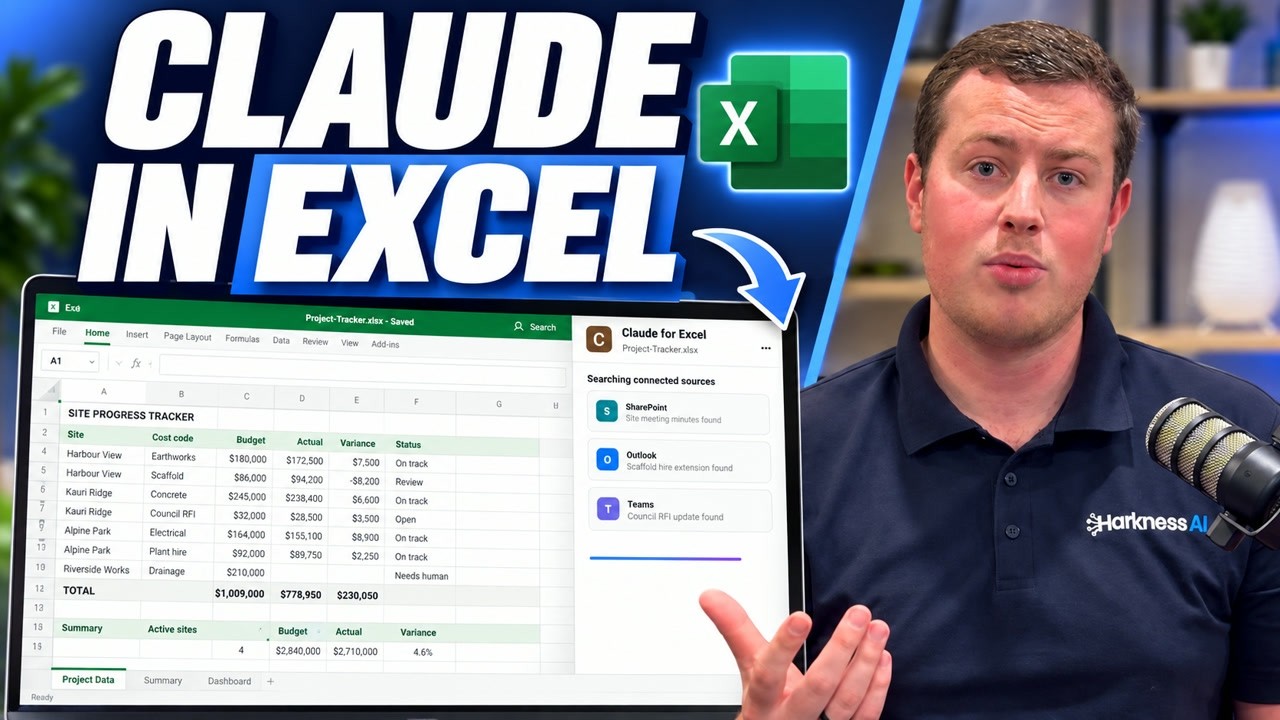
“Take my business transactions for the last 3 months and build me an Excel file, one row per transaction with date, amount and category, plus a summary tab with monthly totals by category.” It hands you the file. That job used to take hours to get looking right. More on this in Claude in Excel for NZ business owners.
4. Does your bank match what is in Xero?
If you run Xero, ask Claude to pull last month’s bank transactions, compare them with how Xero has coded the same period, and show anything that does not line up. It can catch something coded to the wrong account, something in Xero twice, or something that left the bank but never made it in. You get a list to review instead of hunting by hand. For me it found airfares I had paid on a personal debit card while travelling to a client, which should have been claimed in Xero. See automating your accounting with Claude and Xero for the Xero side.
5. Can Claude combine your bank, Xero and calendar?
Add three connectors and you can ask: how many hours of meetings did I have with a client last month, what did we invoice them, and what does that work out to as an hourly rate? Then compare it with another client. That is three systems answering one question, and it is a number almost nobody sits down to work out because it means digging through three places. Claude did it in a few minutes. Connecting your bank on its own is handy. Connecting it to your other systems is where the real value is. The broader idea is in connecting Claude to any business software.
What are the limits of connecting Claude to Akahu?
- The data is only as fresh as Akahu. Personal accounts refresh about once a day, so what you spent this morning may not be there yet.
- Categories are not perfect. Akahu categorises many expenses for you, but for anything that matters, Claude can guess and you need to approve it.
- It depends on one community developer, not an official Akahu product.
How far can you take it?
Some business owners I know have built their own Xero-style tools connected straight to their bank through Akahu, to avoid subscription costs. Others are building budgeting or KiwiSaver tools to sell. For day-to-day tasks, use Claude’s Skills to teach it exactly how to handle each job, so it repeats it the same way and you can share it with staff. A paid plan helps too - see Claude pricing in NZ. In my levels of AI in NZ business, this is level three: Claude connected to your tools.
The full setup: an Akahu profile, two tokens, UV, the extension, and read-only access. Use it at your own risk.