You can forward supplier bills straight into Xero, but the AI that reads them there is not great. It gets the total and misses the description, does not split out line items, and often picks the wrong account code. Someone then opens every bill and fixes it by hand, and for a lot of businesses that is hours every week of basic record keeping.
This is how I set Claude up to do that work, and how I connect it to Xero. I’ve helped set up Claude and similar tools for over 50 New Zealand businesses, and this connector is what solved the problem for many of them.
What are the three ways to connect Claude to Xero?
They are not the same at all.
- The official connector. It sits in Claude’s connector directory and is great for questions like “what’s my cash position”, “who owes me money” and “what did we make last quarter”. It is read only, so it cannot create anything. We originally set clients up with it, but it could not do what they wanted.
- Xero’s own MCP server. This one can write, so it can create invoices and bills. But it cannot open attachments, so it cannot see the PDF the supplier sent. Ask it to enter a bill and it has no information to work from.
- The connector I built. It is a Claude desktop extension that uses the full Xero API. It reads attachments, including photos, scans and multi-page PDFs, and with writing switched on it drafts the bill properly.
You can download it free on the Xero connector for Claude page. For the wider picture, see the Xero and AI hub and the earlier guide to automating your accounting with Claude and Xero.
What do you need to set up the Claude Xero connector?
- The Claude desktop app on a paid plan, around NZ$40 a month. It does not work in the browser alone. Windows or Mac is fine. More on plans in Claude pricing in NZ.
- Your Xero login, on an admin account for the organisation you want to connect.
- The connector file, called xero-mcp.mcpb.
It is read only until you switch writing on. Anything it writes is saved as a draft, and you approve everything. Setup takes about 10 minutes and you only do it once.
How do you create the Xero app?
This part looks a little scary but it is straightforward.
- Go to developer.xero.com and sign in with your normal Xero login.
- Open My Apps, then New App.
- Give it a name you will recognise. I called mine “Claude for Xero”.
- For the integration type, choose mobile or desktop app, not the web app. This is the one a lot of people get wrong.
- For the company or application URL, use your own business website. It does not matter much.
- The redirect URI does matter and must be exact. Copy it from the connector page.
- Tick the terms and create the app, then copy the client ID. That is the only thing you need from here.
One thing to know: the free Xero developer plan connects up to five organisations. Accountants and bookkeepers with more than five clients will need the paid plan, which is around NZ$35 to NZ$40 a month.
How do you install the connector in Claude desktop?
Double-click the xero-mcp.mcpb file and choose Open in Claude. Or open Claude desktop, go to Settings, then Extensions, then Install extension, and drag the file in.
Paste your client ID into the first box and leave the rest blank. At the bottom is a tick box to allow Claude to write to Xero. Leaving it off is fine to start. Xero locks in permissions when you connect, so if you switch writing on later you have to reconnect.
Save, then check the extension is switched on. In a new chat, click the plus sign and you should see the connector ticked. If you have another Xero connector on your account, remove it, because Claude can get confused between the two.
How do you connect Claude to your Xero organisation?
Open a new chat and type: “Connect to my Xero using the Xero connector.” The first time, Claude asks whether it can use the tool, so click Allow. It then gives you a link that lasts around 15 minutes, so use it promptly. Sign in to Xero with the same account, pick the organisation from the drop-down, then go back to Claude.
Claude confirms which organisation it connected to. Check it matches the one you picked. Then test it:
- Ask what bank accounts the organisation has, and check the list is right.
- Ask it to open the PDF on one of your bills and tell you what is on it.
If you have more than one Xero organisation, repeat the steps for each.
Can Claude enter Xero bills for you?
Yes, and this is the best bit. First make sure supplier bills are forwarded into Xero. Every organisation has a unique email address, shown in Xero under Purchases, then Bills, at the top right. Each forwarded email becomes a draft bill, but it is not filled out properly. That is where Claude comes in.
In the same chat, paste a prompt along these lines:
Use the Xero connector for [company]. Go through every draft bill. For each one, open the attached file and fill in the supplier, the date, the due date and the invoice number, and split it into line items. Code each line item the way we’ve coded it for suppliers before. Make sure the GST is right, check all the totals match the PDF, and save it as a draft.
The important part is telling it to look at bills you have already coded correctly. It uses those to code new ones, so it learns your patterns. Claude asks permission each time it uses a new tool. You can click Allow, or Allow Always if you are comfortable.
In my demo it did the following:
- Listed the draft bills and their attachments, then opened the PDFs and matched them up.
- Split a timber and fixings bill into two lines with GST on both. Before coding, it pulled the latest bills from the same supplier, saw they went to cost of goods sold, and used the same account. That is what a good bookkeeper does.
- Set the currency to US dollars with no GST on an overseas software subscription.
- Split a phone bill 50/50 and put GST on the business half only.
- Read a crumpled phone photo of a fuel receipt.
- Stopped on one bill because the invoice number already existed for that supplier from last month. It left it alone and flagged a possible duplicate, which is exactly what I want.
When it finishes, it shows a table of every bill with a note on why it coded each one that way. Then you check each bill in Xero against the PDF, which is still attached, and approve it yourself. You still want a human in the loop, but it cuts around 90% of the manual data entry and admin time.
What else can Claude do once it can read and write Xero?
Draft invoices
Open a new chat and ask for an invoice the way you would ask a person. Voice mode works well. For example: draft an invoice for a builder customer for six hours this week, using the rate I charged last time and the same style of description. Claude looks up their last few invoices, finds the rate, matches your wording and GST, and saves a draft. You open it in Xero, check it and approve it. The official connector cannot do this because it can only read.
Find coding mistakes
Ask it to go through last quarter’s bills and spend money and list anything that looks wrongly coded: the same supplier going to different accounts, GST on overseas subscriptions, anything that looks personal. Ask for links to the invoices. In my case it showed I was paying for software I was not using, so I cancelled it, and it turned up some incorrect coding I could fix.
Build Excel reports
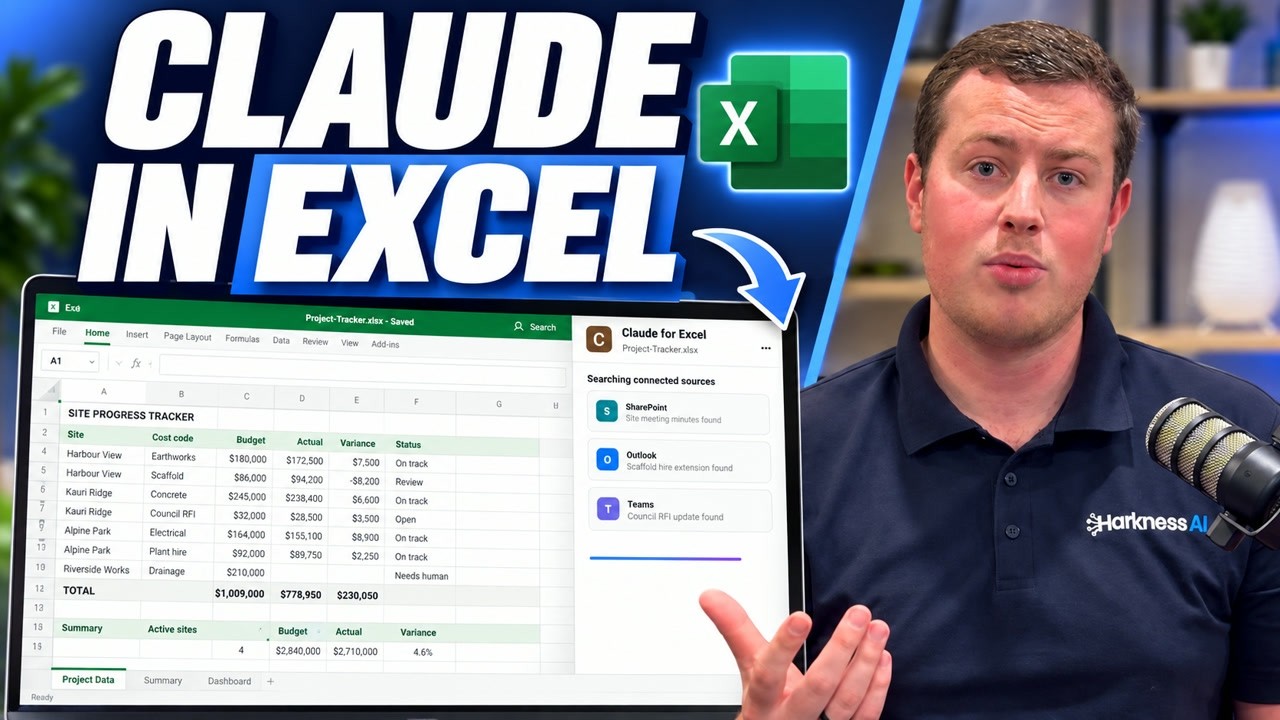
Ask for an Excel report of the subscriptions you pay for, with a dashboard overview. Claude builds the file in the chat, with proper tables, totals and formulas. Download it and open it in Excel, send it to your accountant or take it to a meeting. If you already have a spreadsheet you update for managers or board reporting, open Claude’s Cowork tab, point it at the folder and ask it to update the sheet. See also Claude in Excel for NZ business owners.
Is it safe to let Claude into your Xero?
It will not approve bills, pay them or email anyone. Everything sits in drafts until you approve. It does not delete anything without an approval step, and if something is voided you can bring it back. You also control which tools Claude can use: go to Settings, then Customise, and choose them step by step.
It is not an accountant and not a replacement for one. If it is unsure about something, take it to the right person. It helps to tell Claude in your prompt: if you are unsure about anything, flag it to me.
Want this set up in your Xero?
If you want this running in your own Xero, or across your client files, that is what I do. Get in touch through the link on the connector page.