Google AI Studio is Google’s free, browser-based workspace for trying its AI models: Gemini for text and code, Imagen for images, speech and Lyria music generation, Veo for video, and a Build tab that turns a prompt into a working web app. You sign in with a Google account - no installation and no subscription - and test everything in one place before deciding whether to build on it. This tour goes through each section, what it’s good for and what I’ve built with it. I recommend it to NZ businesses as the cheapest place to start experimenting with AI.
Getting Started
Search for Google AI Studio and sign in with a free Google account. You’ll see a chat interface similar to ChatGPT or Gemini, but with extensive customisation options on the side panel.
You can select from all of Google’s released models -2.5 versions, older 2.0 and 1.5 models, open-source Gemma versions, and even Learn LM for tutoring. For this tour, we’ll focus on Gemini 2.5 Pro.
Chat Window Features
Beyond basic chat, Google AI Studio offers powerful extras:
- Structured output: JSON format for use in your code
- Code execution: Upload CSV data and execute Python code directly - no hallucination on data analysis
- Function calling: Connect custom APIs
- Google Search and URL context: Ground responses with live web data
- Temperature and Top P controls: Fine-tune how the model responds
It’s fully multimodal - upload video, audio, text, images, files from Google Drive, and even YouTube videos. It’s free to use, within daily rate limits that vary by model.
Real-Time Streaming
The stream section lets you talk to Gemini in real time. You can speak directly, share your webcam, or share your screen. This is perfect for walking through exams, getting help with complex software, or having the AI teach you how to use unfamiliar tools while you’re on them.
Image Generation with Imagen
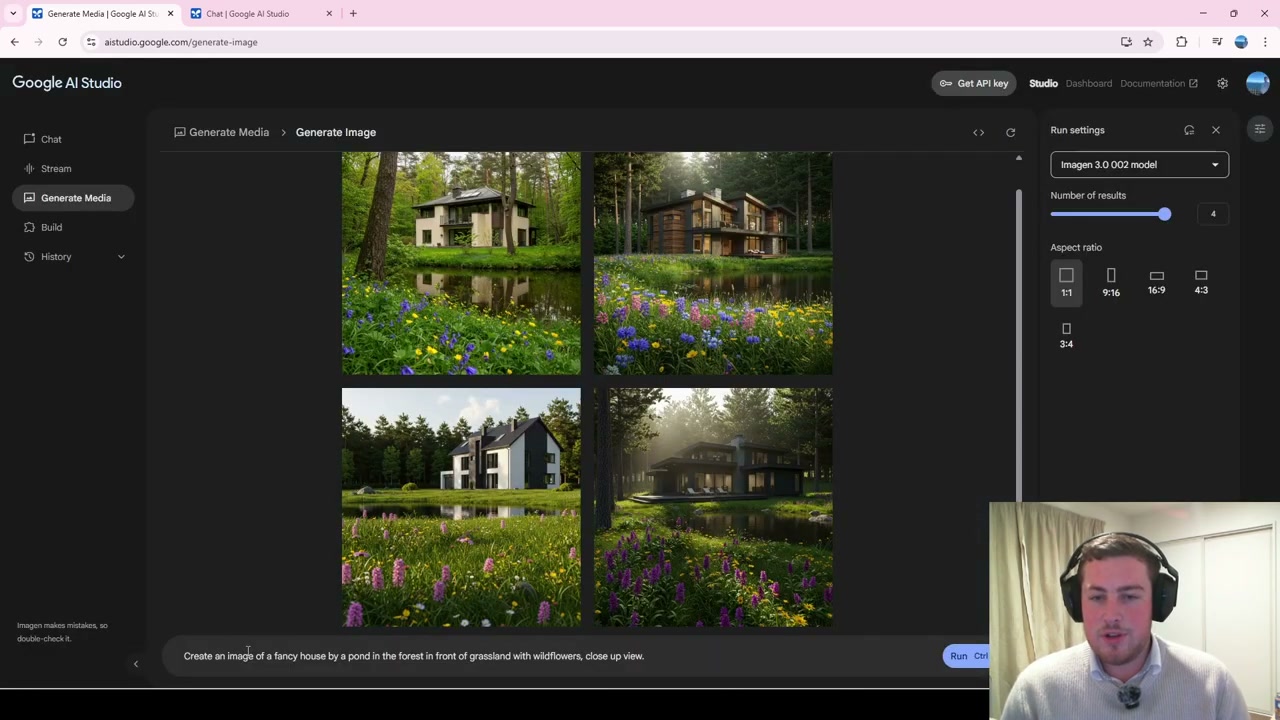
Under Generate Media, you’ll find Imagen for image generation. You can set aspect ratios, number of results, and choose between models. Getting four results per prompt gives you a much better chance of getting exactly what you’re looking for - compared to other tools that return just one. For a simpler, design-focused front end on Google’s image models, ImageFX in Google Labs works well - here’s how I use it to make YouTube thumbnails for free.
Speech Generation
There are two modes: single speaker and multi-speaker audio. Generate voiceovers, podcasts, or conversations. Choose between Flash (fast) and Pro (detailed) models, and customise voices and tones. You can download and export everything.
Music Generation with Lyria
Lyria is Google’s music generation model, available as a Prompt DJ. Adjust knobs for different music styles and watch it blend genres together in real time. The API is available through Firebase Studio for generating music programmatically.
Video Generation with Veo
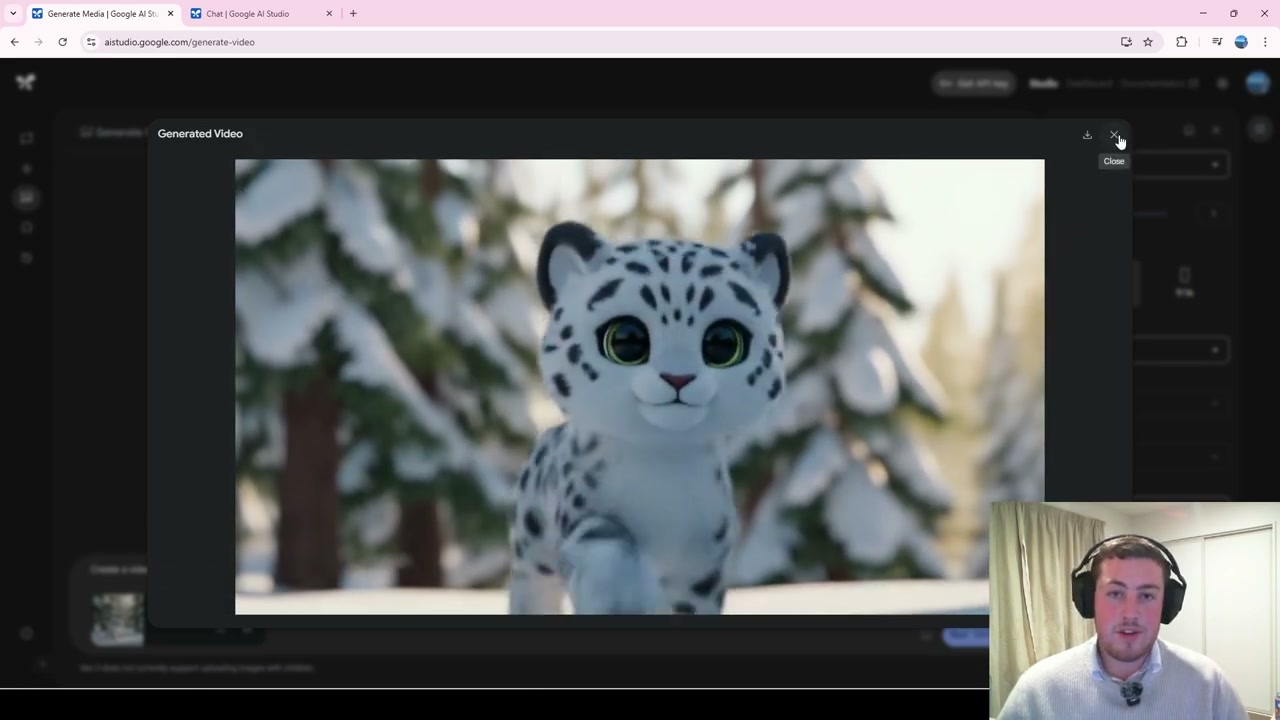
Veo is the video generation model. Choose aspect ratios, set negative prompts to exclude unwanted elements, and even upload a reference image. Veo 3 adds built-in audio generation with noticeably better quality, and the newer Veo models sit on paid tiers. I walk through a real product ad in make product videos for free with Google Veo 2. If you need a narrated slide presentation rather than short clips, Google Vids is the better tool.
Build Full Web Applications
The Build section works like Lovable, Cursor, or Bolt - create full web applications from a single prompt using Gemini 2.5 Pro. I built a dinosaur jumping game in 89 seconds from one small prompt. You can iterate on graphics, features, and design, then deploy directly to Google Cloud.
When to Use AI Studio vs the Gemini App
Both run on the same Gemini models, but they suit different jobs:
- Use the Gemini app for everyday chat, writing and research - it’s the simpler, consumer-friendly front end.
- Use AI Studio when you want control: system instructions, temperature, structured JSON output, code execution and grounding with Google Search.
- Use AI Studio to test a prompt before you build on it, then click “Get API Key” to use the same model in your own code - see Google’s free Gemini API for the free-tier limits.
- Use AI Studio to try image, speech, music and video models side by side without signing up to separate tools.
One caution: on the free tier, Google can use what you send to improve its models, so keep client data, personal information and anything commercially sensitive out of it. Move to a paid API plan before using it with real business data. The interface also changes often - my Google AI Studio 2025 update covers the redesigned home page, dashboard and Build section.
Final Thoughts
Google AI Studio is one of the most useful AI tools to learn right now because it’s free to start and puts text, image, video and audio generation with Google’s latest models in one place.
This tour is for builders. A business that wants the practical version starts with an AI consultant NZ.